
- The product page button stays disabled, with a message.
- Add to cart and quick-buy requests are refused.
- Cart sync removes the line and shows a notice.
- Bloom warns you in the admin when pre-order is set on a subscription-only product.
How it works
- Subscription paused. When a subscription order contains a pre-order product, Bloom pauses the subscription and holds the order. Klaviyo sends your paused email.
- Stock back. Bloom restarts the subscription. The next order goes out that day and the schedule repeats from that date. Klaviyo sends your restarted email.
Get set up
Connect Seal in Bloom. Changes take effect within about an hour of connecting.- In Shopify admin, open Apps → Seal Subscriptions.
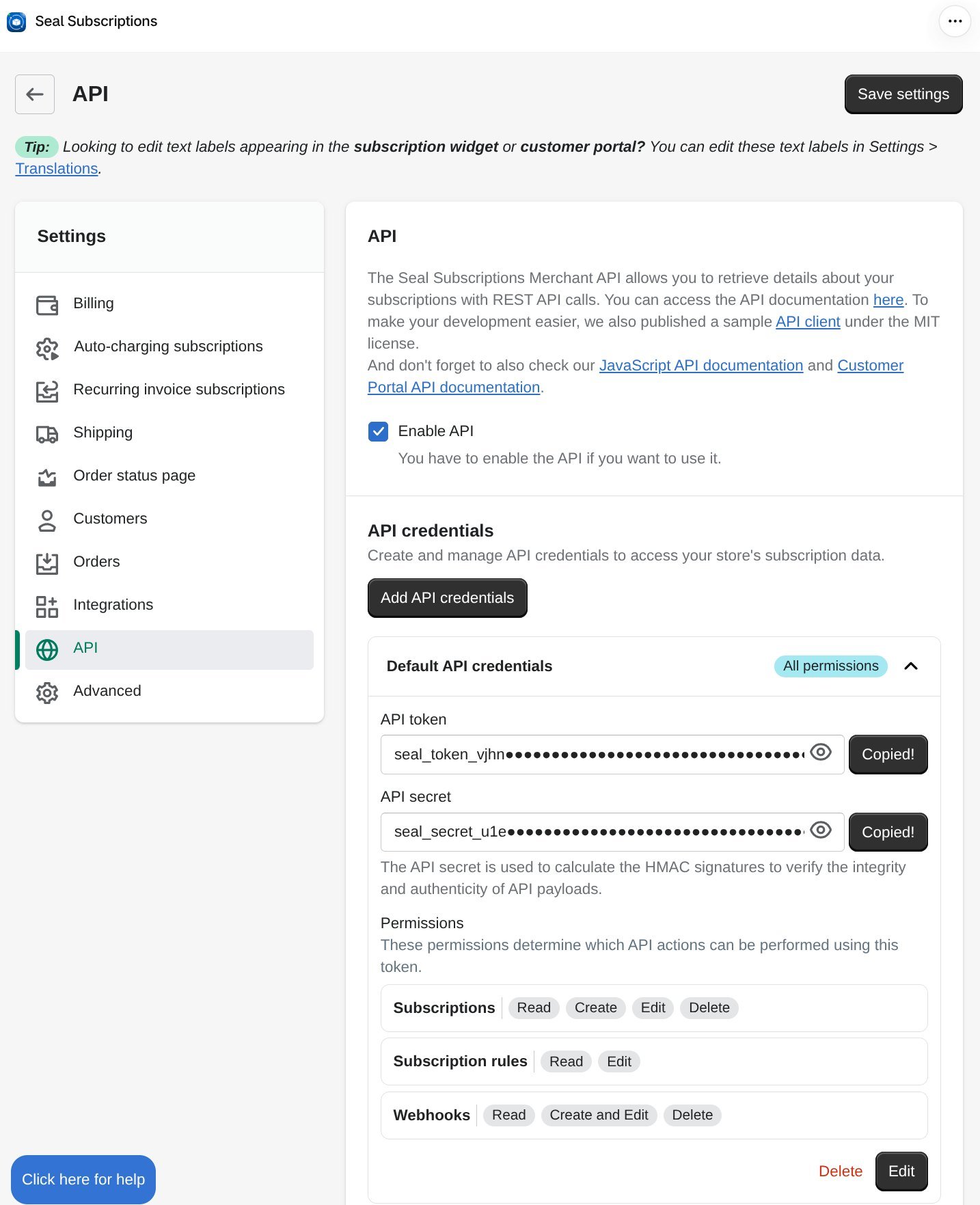
- Go to Settings → API and tick Enable API.
- Click Add API credentials, or use Default API credentials.
- Copy the API token and API secret.
- In Shopify admin, open Apps → Bloom → Pre-order → Settings → Subscriptions.
- Paste them into Seal API token and Seal API secret.
- Click Connect Seal.
Custom credentials need Subscriptions (Read, Create, Edit, Delete) and Webhooks (Read, Create and Edit, Delete) permissions.
Recent delays
Apps → Bloom → Pre-order → Settings → Subscriptions lists the last 10 subscriptions Bloom paused. Columns are Subscription, Next billing was and Status. It reads No delays yet until Bloom pauses one.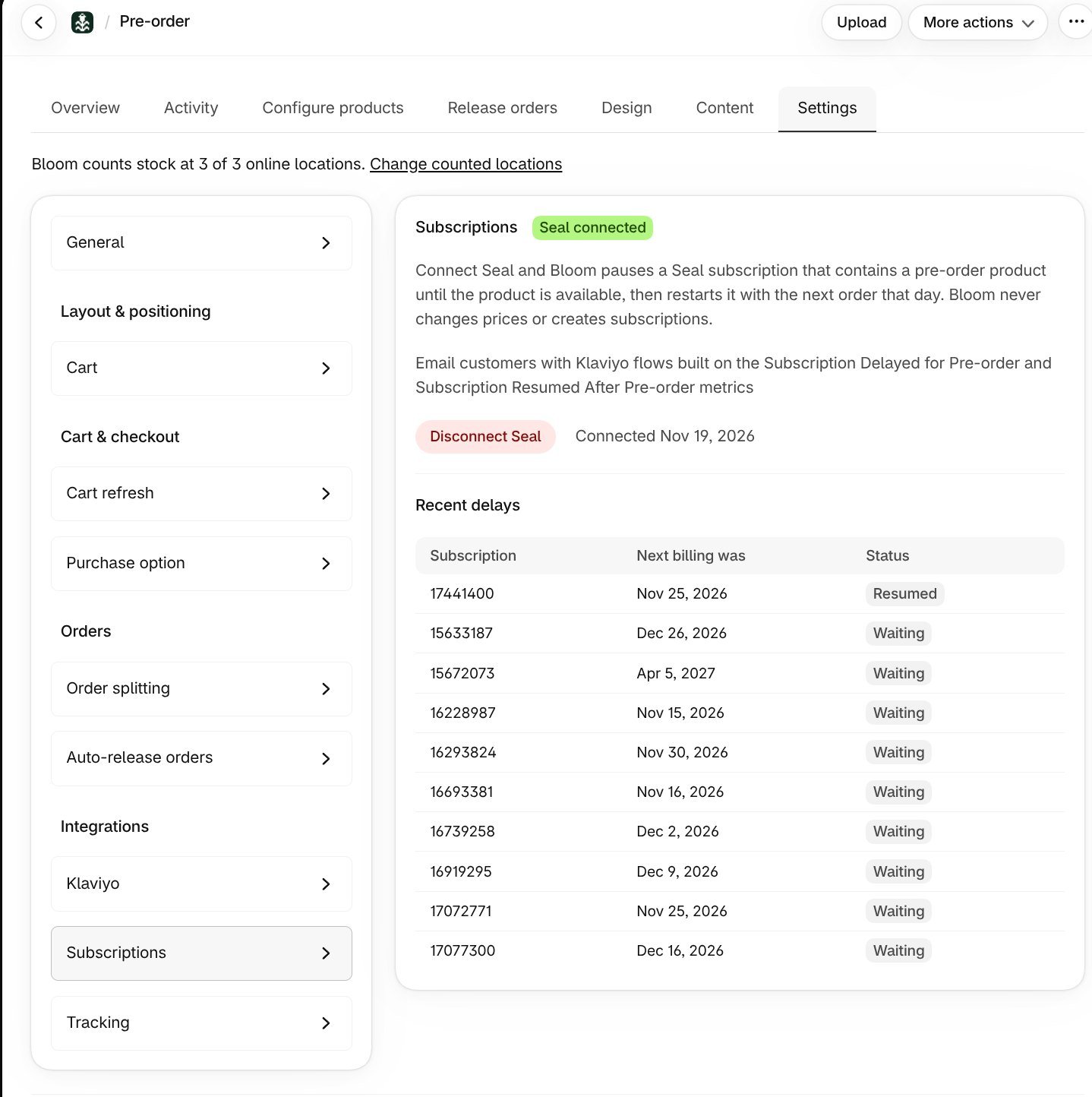
Subscription timing notice
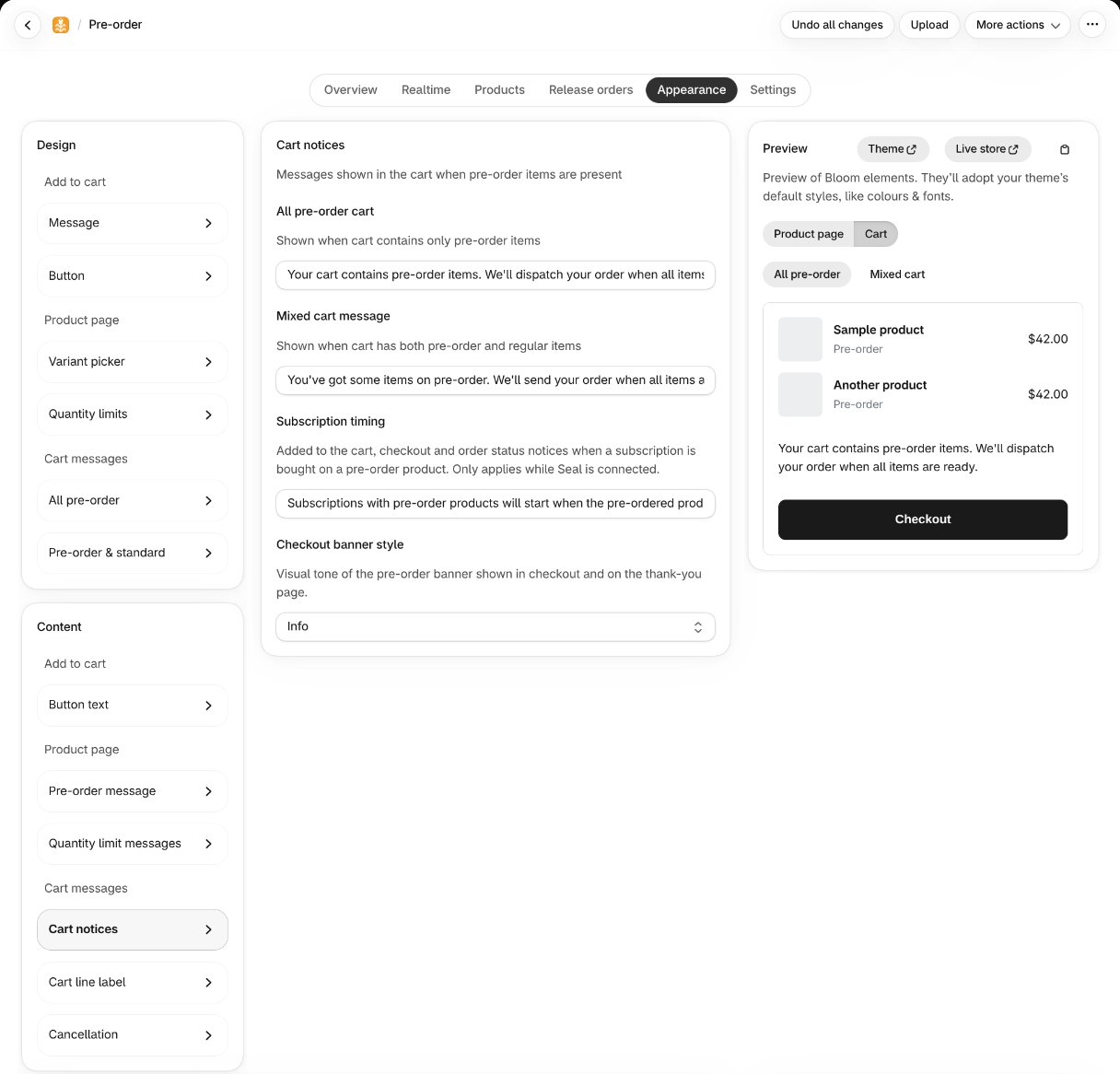
While Seal is connected, the cart message, checkout banner and order status block add a Subscription timing notice to subscription lines with a pre-order product. Default: Subscriptions with pre-order products will start when the pre-ordered product is in stock, and only start repeating from that date.- In Shopify admin, open Apps → Bloom → Pre-order → Appearance → Content.
- Open Cart messages → Cart notices.
- Edit Subscription timing.
- Click Save.
- Buy it now is hidden for these lines.
- Direct links and headless storefronts go straight to checkout and are still held, but show no messages.
- Seal connected or disconnected. The cart message and checkout banner add or drop the notice within about an hour. Order status keeps it on orders already placed.
Email customers with Klaviyo
Bloom sends two Klaviyo events. Build one flow on each. Bloom needs Klaviyo connected.Subscription paused flow
- In Klaviyo, go to Flows and click Create flow.
- Click Build your own, name the flow Subscription paused, then click Create flow.
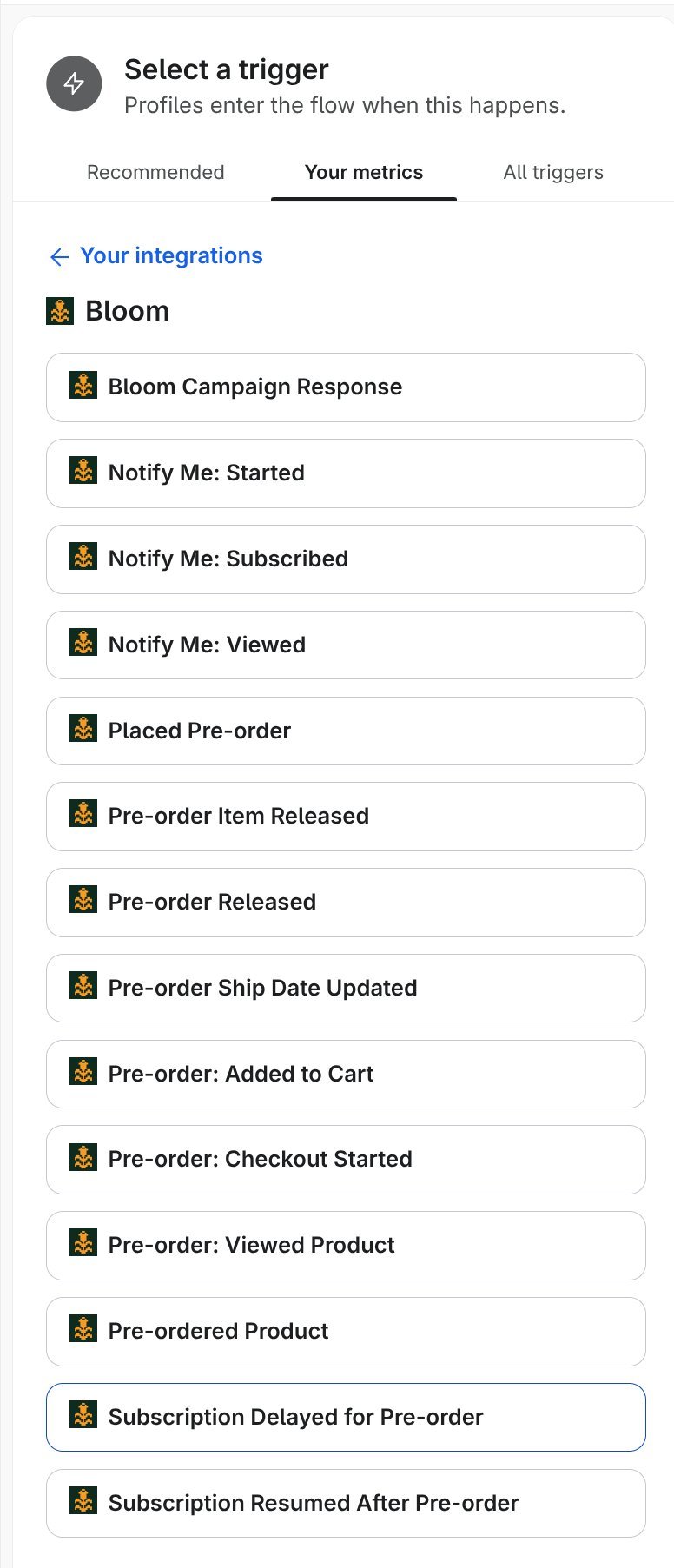
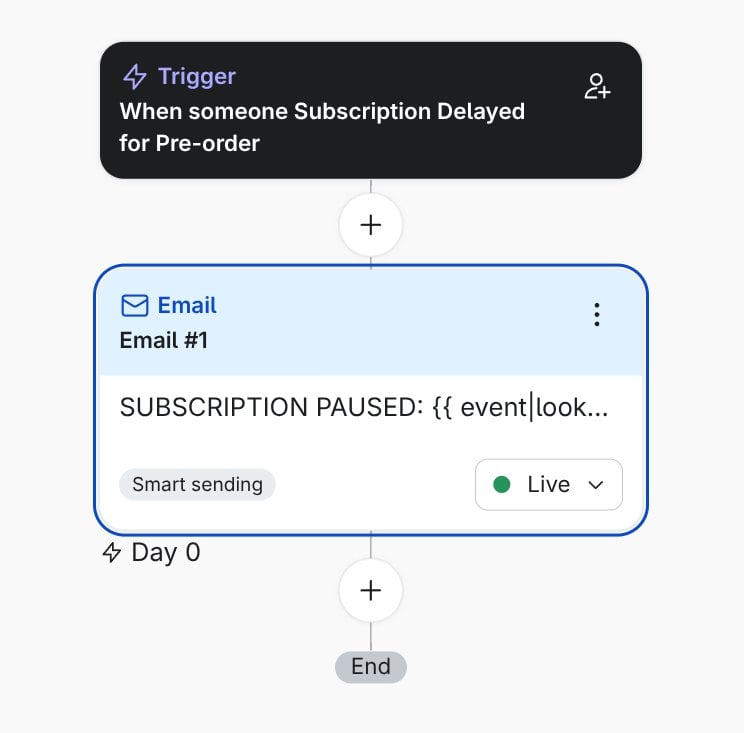
- Under Select a trigger, open Your metrics → Bloom and choose Subscription Delayed for Pre-order. Click Save.
- Click + under the trigger and choose Email.
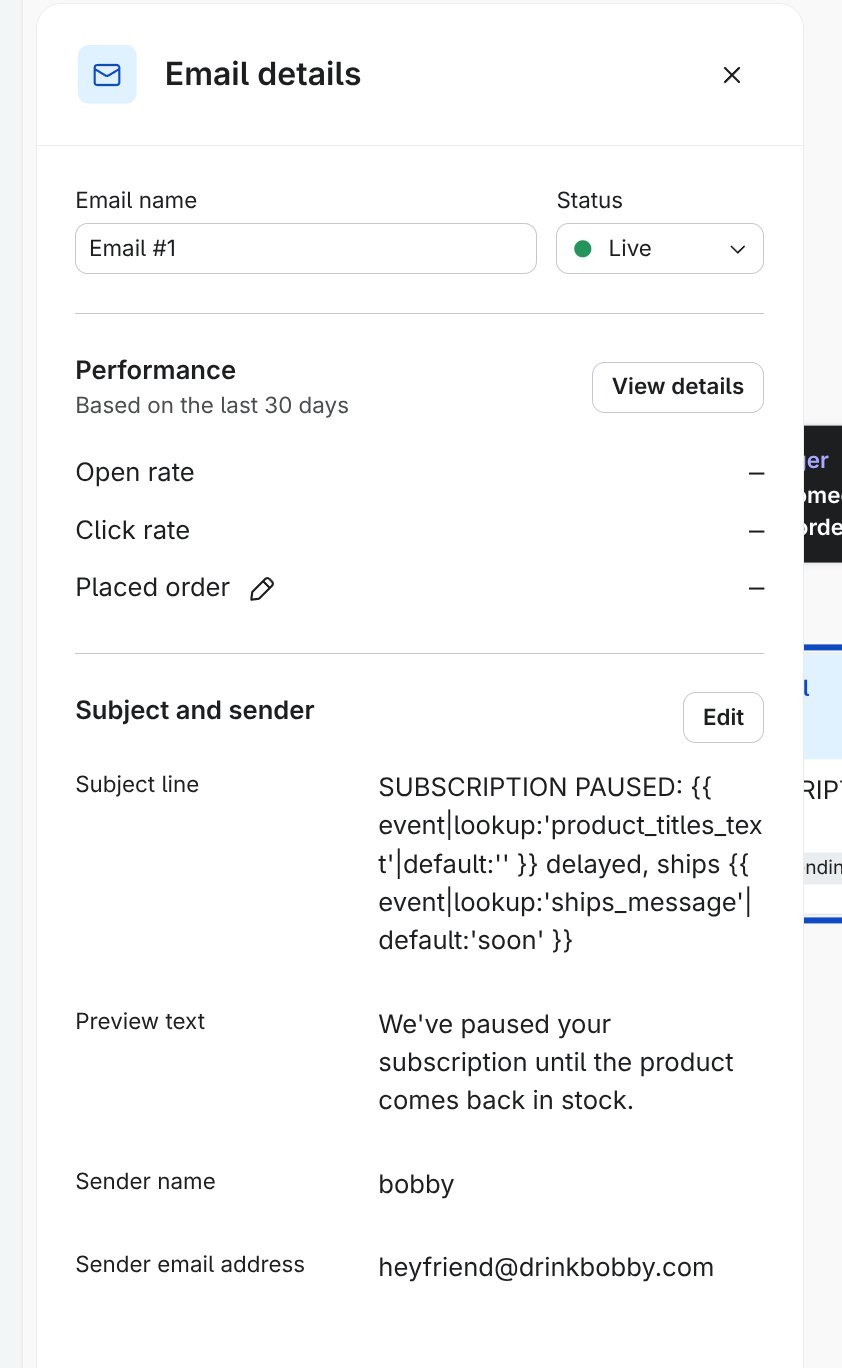
- Open the email. Next to Subject and sender, click Edit.
- Paste the subject line and preview text, add your sender name and email, then click Save.
Subject line
Preview text
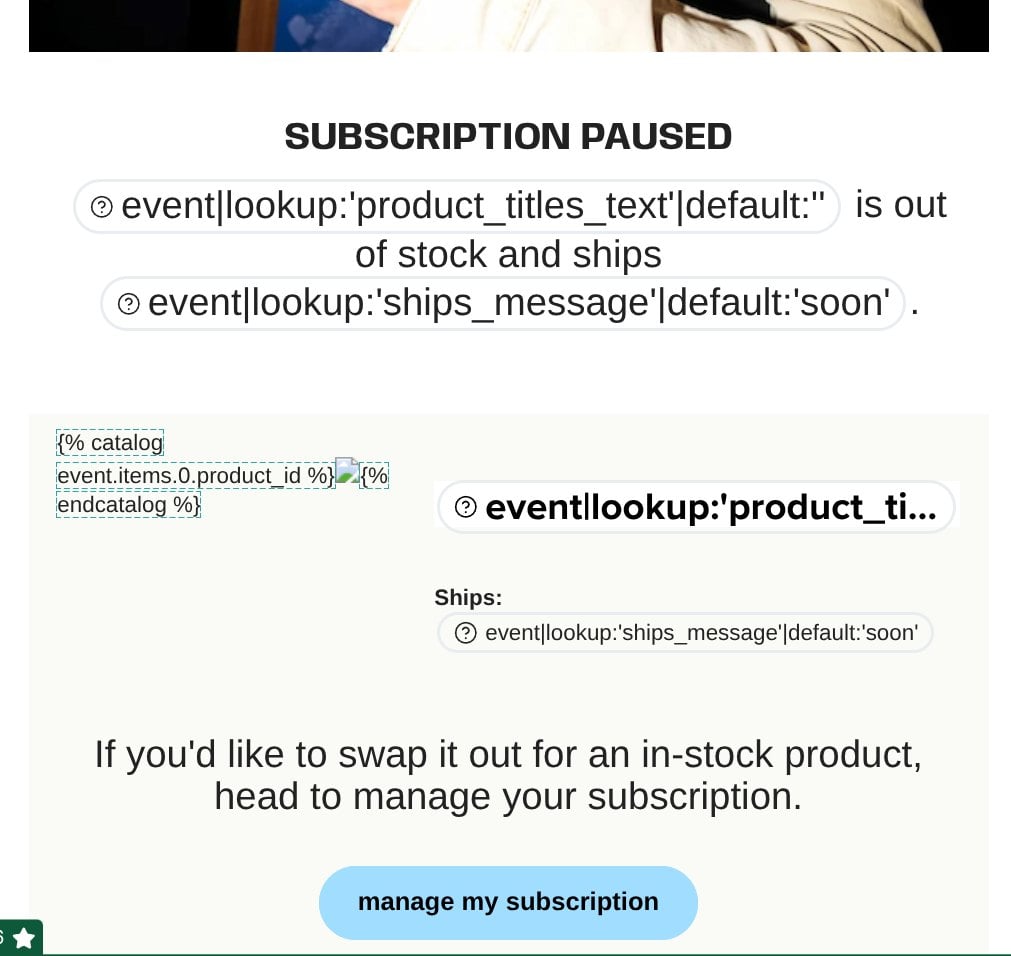
- Click Edit content and build the email with these blocks:
Heading
Intro
Product image (Text block, source view)
Product name
Ship date
Manage subscription button link
- Click Save, then go back to the flow.
- Set the email status to Live.
Subscription restarted flow
- In Klaviyo, go to Flows and click Create flow.
- Click Build your own, name the flow Subscription restarted, then click Create flow.
- Under Select a trigger, open Your metrics → Bloom and choose Subscription Resumed After Pre-order. Click Save.
- Click + under the trigger and choose Email.
- Open the email. Next to Subject and sender, click Edit.
- Paste the subject line and preview text, add your sender name and email, then click Save.
- Click Edit content and build the email with the blocks below.
- Click Save, go back to the flow and set the email status to Live.
Subject line
Preview text
Heading
Intro
Product image
Product name
Event properties
When a subscription is paused
A subscription is paused when all of these are true:- Seal is connected in Bloom
- The subscription isn’t prepaid
- At least one item in it is on pre-order in Bloom
- You haven’t resumed it yourself in Seal