
Events fire only after the shopper grants analytics consent. Bloom checks Shopify’s Customer Privacy API before sending to GA4, GTM, Klaviyo, Meta Ads or Google Ads, and before identifying the shopper in Klaviyo. Klaviyo only records events for shoppers it can identify. Bloom’s own anonymous counts are unaffected.
Events
- View - fires when the Notify Me option is on screen on a product page (
notifyMe_view_bloom). A form that loads below the fold doesn’t count until the shopper scrolls to it. Klaviyo metric: Notify Me: Viewed. - Start - fires when a shopper opens the form (
notifyMe_start_bloom). On pre-order variants this is the Notify me when available click; on sold-out variants, where the form is already open, it’s the first interaction with a field. See how the form displays. Klaviyo metric: Notify Me: Started. - Submit - fires when a shopper completes the form (
notifyMe_submit_bloom). Recorded with the channel the shopper chose (email or SMS), and the campaign key when a campaign is attached. Klaviyo metric: Notify Me: Subscribed.
Notify Me: Subscribed is Bloom’s analytics event. It is not Klaviyo’s Subscribed to Back in Stock metric, which triggers the back-in-stock flow.
Sold-out views
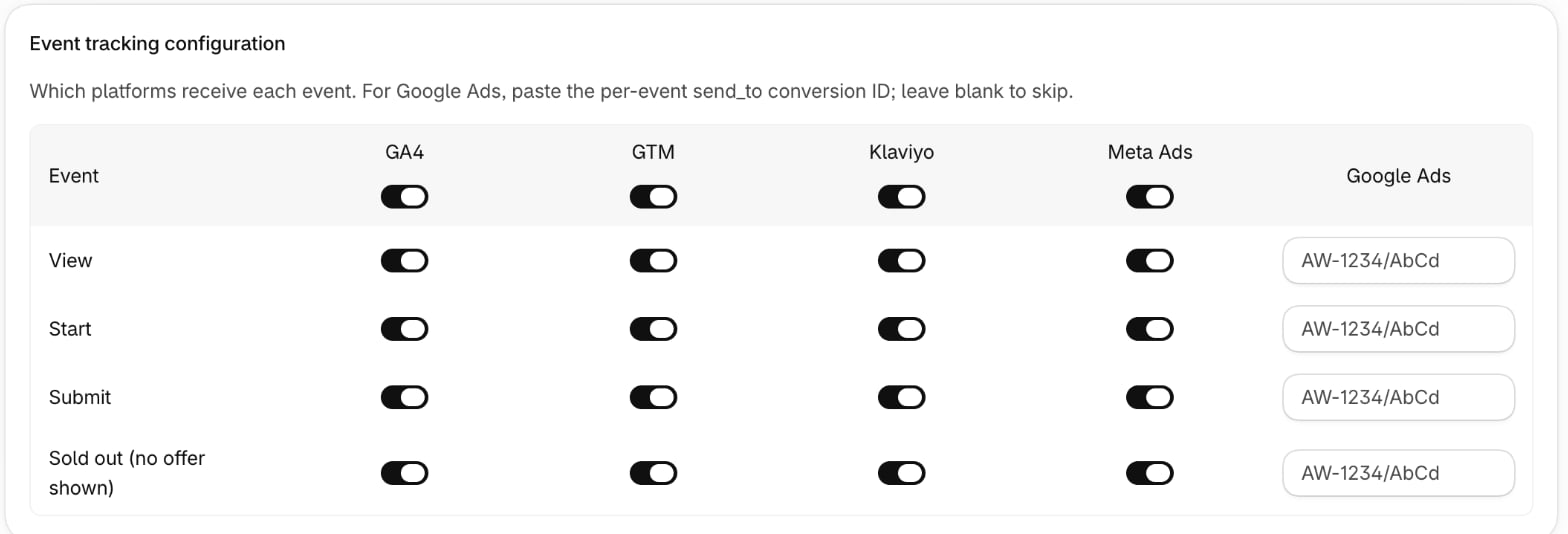
When a variant is fully sold out - neither pre-order nor Notify Me available - Bloom fires asoldOut_view event so you can measure the demand you’re currently missing. It carries the product, variant, price, and currency. In Klaviyo it’s the Sold Out: Viewed Product metric (event_handle soldOut_view_bloom). Configure its destinations on the Sold out (no offer shown) row of the tracking matrix.
Revenue from back-in-stock emails
Bloom also tracks what happens after Klaviyo sends the back-in-stock email - visits, add-to-carts, and orders from shoppers who clicked through. This is collected automatically - see Measure back-in-stock results. Orders that contain the notified product are taggedNotify Me, and connected Klaviyo accounts receive Placed Notify Me Order and Notify Me Ordered Product events. See Notify Me orders.
Destinations
- GA4
- GTM
- Klaviyo
- Meta Ads
- Google Ads - per-event conversion ID/label (see below)
Configure
- In Shopify admin, open Apps → Bloom.
- Go to Notify me → Settings, then Integrations → Tracking.
- For each event row, toggle the platforms you want it sent to.
- Click Save.
Google Ads
Google Ads conversions need a per-event conversion ID and label. Paste thesend_to value from Google Ads → Tools → Conversions → Tag setup into the Google Ads cell for each event you want tracked. Format: AW-XXXXXXXXXX/AbCdEfGh. Leave a cell blank to skip that event.