
How it works
- Email only. Campaign forms always ask for email, with no SMS option. A logged-in customer’s email is prefilled.
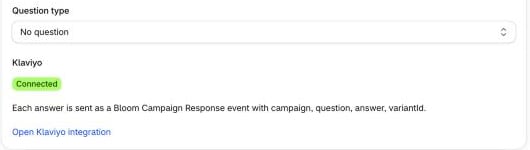
- One question. Pick Free text, Number (optional minimum and maximum) or Choice (up to 20 options, one or many answers). No question changes the copy only.
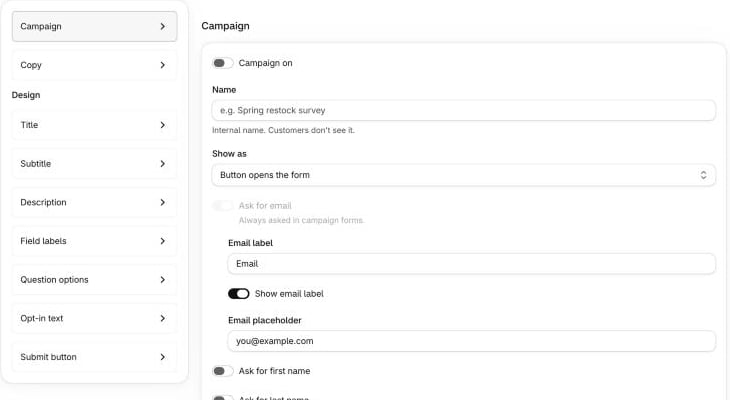
- Optional names. Ask for first and last name, each optional or required. Names are added to the Klaviyo profile and the Shopify customer, without overwriting existing names.
- Answers go to Klaviyo. Each answer is sent as a Bloom Campaign Response event. Sign-ups still join your back-in-stock list and count towards your plan’s Notify Me cap.
- One campaign per store. The Campaign tab edits a single campaign during Beta.
Campaigns need Klaviyo connected with one click. They don’t show on stores using the legacy Company ID and List ID.
Steps
- In Shopify admin, open Apps → Bloom.
- Go to Notify me → Campaign.
- Under Campaign, give it a Name, pick Show as and a Question type, and set the fields that appear.
- Under Copy, set the Title, Description, Submit button label and Success message.
- Switch Campaign on, then click Save.
- Attach the campaign to products or variants.
Attach it to products
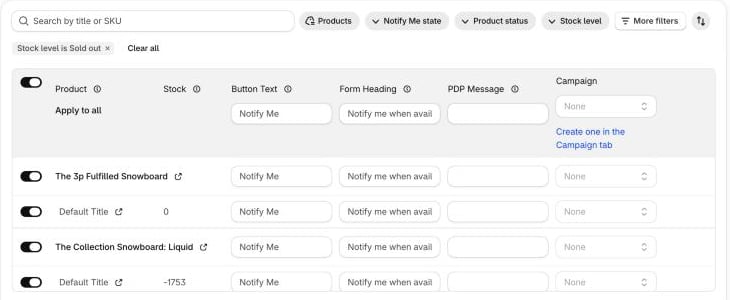
- Go to Notify me → Configure products.
- Pick the campaign in the Campaign column on a variant or product row, or on the Apply to all row.
- Click Save.
notify_me_campaign column in the Products CSV.
Use answers in Klaviyo
The Bloom Campaign Response event carries:- The campaign - key, name and title.
- The question and answer - question label and type, the answer, and choice labels or the numeric value.
event_handle-campaign_response, which stays the same if the display name changes.- Shopper context - product, variant, price, market, locale, device and UTM source, medium and campaign.