
Storefront events fire only after the shopper grants analytics consent, read from Shopify’s Customer Privacy API - usually set by your cookie banner. Until then, Bloom sends nothing to GA4, GTM, Klaviyo, Meta or Google Ads. Klaviyo also only records events for shoppers it can identify. Bloom’s own anonymous counts for Results are unaffected.
Events
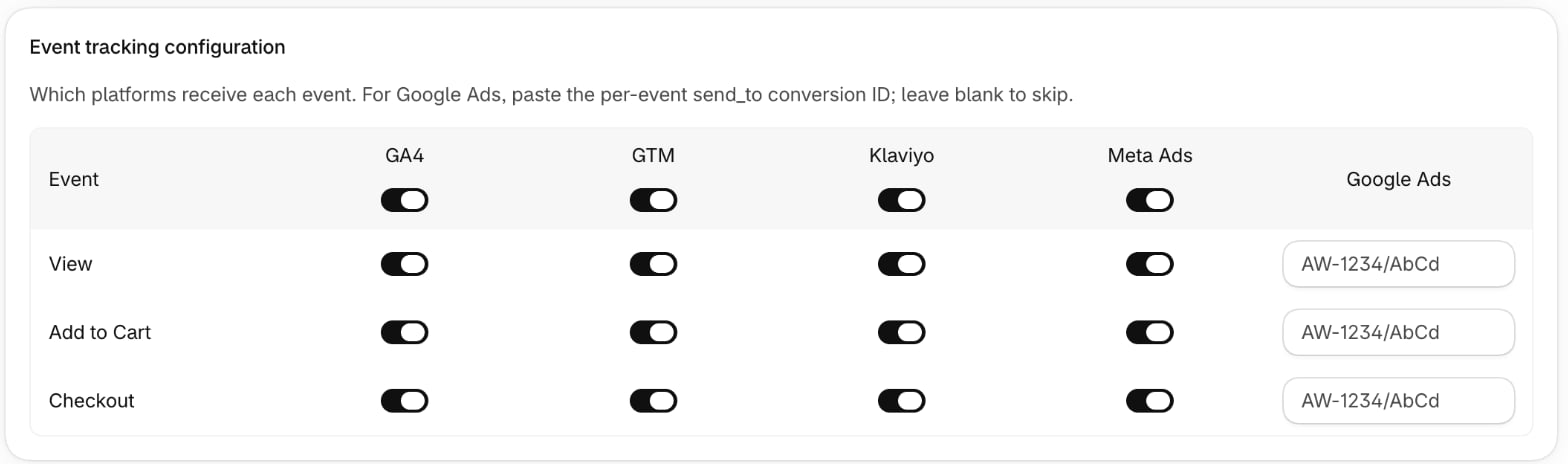
- View - when a shopper views a product on pre-order (
preOrder_view_bloom). Klaviyo metric: Pre-order: Viewed Product. - Add to Cart - when a shopper adds a pre-order variant to their cart (
preOrder_addToCart_bloom). Klaviyo metric: Pre-order: Added to Cart. - Checkout - when a cart containing a pre-order item reaches checkout (
preOrder_checkoutStart_bloom). Klaviyo metric: Pre-order: Checkout Started.
orders/create webhook and does not need to be configured. Connected Klaviyo accounts also get Placed Pre-order and related order events - see Klaviyo events.
Variants that are fully sold out - no pre-order and no Notify Me - fire a separate soldOut_view event. See Sold-out views.
Destinations
- GA4
- GTM
- Klaviyo
- Meta Ads
- Google Ads - per-event conversion ID/label (see below)
Configure
- In Shopify admin, open Apps → Bloom.
- Go to Pre-order → Settings.
- Under Integrations, open Tracking.
- For each event row, toggle the platforms you want it sent to.
- Click Save.
Google Ads
Google Ads conversions need a per-event conversion ID and label. Paste thesend_to value from Google Ads → Tools → Conversions → Tag setup into the Google Ads cell for each event you want tracked. Format: AW-XXXXXXXXXX/AbCdEfGh. Leave a cell blank to skip that event.