
Shipping & inventory management software typically will see the status change and trigger fulfilment processes but sometimes requires manual actions or work arounds.
Which orders are released?
Orders are released, earliest first, and only when all pre-order inventory required is available. If an order has two pre-order products and only one is on hand today the order will be held. When the other product’s inventory is on hand, the whole order will be released.Ways you can release pre-orders
- In bulk / staged release from on hand inventory
- In bulk ignoring on hand inventory
- Automatically when inventory is on hand - off by default, turn it on
Example inventory changes for a product on pre-order
- Available & on hand are 0
- 30 units are pre-ordered
- Product A inventory is -30 available
- You add 10 inventory
- Available becomes -20, and on hand 10
- Orders for up to 10 units are available for release
- Releasing orders reduces on hand by 10 to 0
How to release orders
Bloom monitors when Shopify inventory changes from any source: manual updates, imports, integrations and received purchase orders.- Manual confirmation - the default. Covered orders stay in Ready until you confirm them.
- Automatic release. Turn it on under Apps → Bloom → Pre-order → Settings → Auto-release orders and matching orders release as On hand stock increases.
Bloom only checks an inventory update when that variant has held pre-order lines. Stock changes for unrelated variants do nothing here.
Bulk release orders
Apps → Bloom → Pre-order → Release orders lists every variant with held pre-orders. Bloom releases the oldest eligible orders first.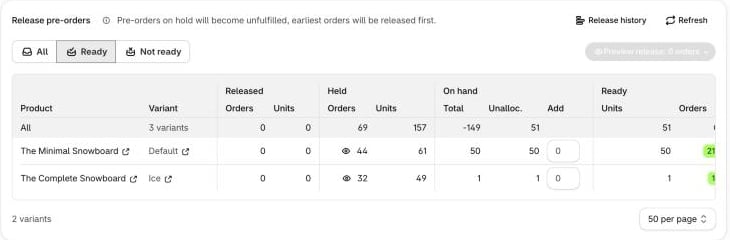
- Released - orders and units already released for this variant.
- Held - orders and units still on hold. Click the eye icon to see them.
- On hand - Total stock, how much is **Unalloc.**ated, and an Add field for receiving units in the same step.
- Ready - units before and after your receipt, and how many orders that covers.
- Release - tick the variants to include.
- In Shopify admin, open Apps → Bloom.
- Go to Pre-order → Release orders.
- Tick the variants to release.
- Set Receiving at to the location taking any units you’re adding.
- Open Preview release and pick your scope.
- Check the order list, then click the release button.
Choose the release scope
Preview release offers two scopes: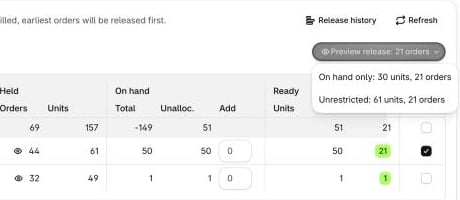
- On hand only - releases just the orders your current stock covers.
- Unrestricted - bypasses the stock check and releases every held order for the selected variants.
Check the preview
The preview lists every order that will release, with its status change from On hold to Unfulfilled. Export CSV downloads the list before you commit.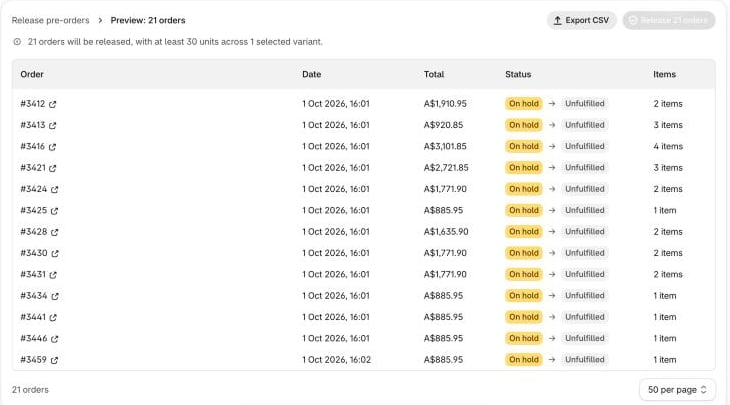
Watch it run
Releases run in batches with a progress bar. You can leave the page - the release keeps going.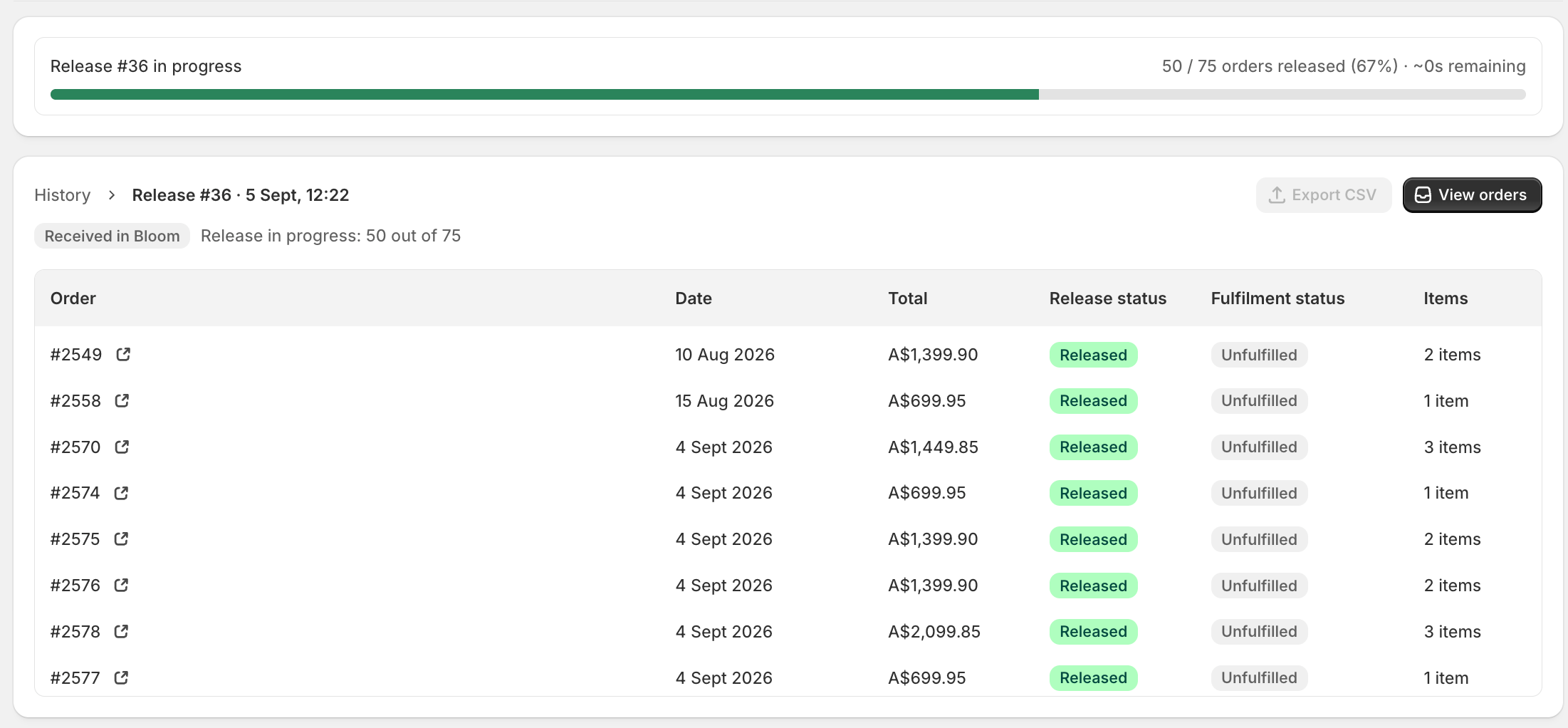
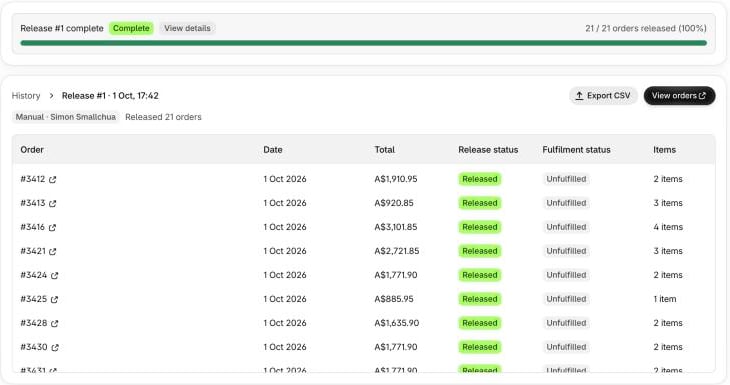
Full release history
Click Release history on Pre-order → Release orders. It records every release - manual, bulk, or automatic. Each row shows the batch number, when it ran, what triggered it (Received in Bloom, Manual with the staff name, or Stock arrival · auto), and what happened.
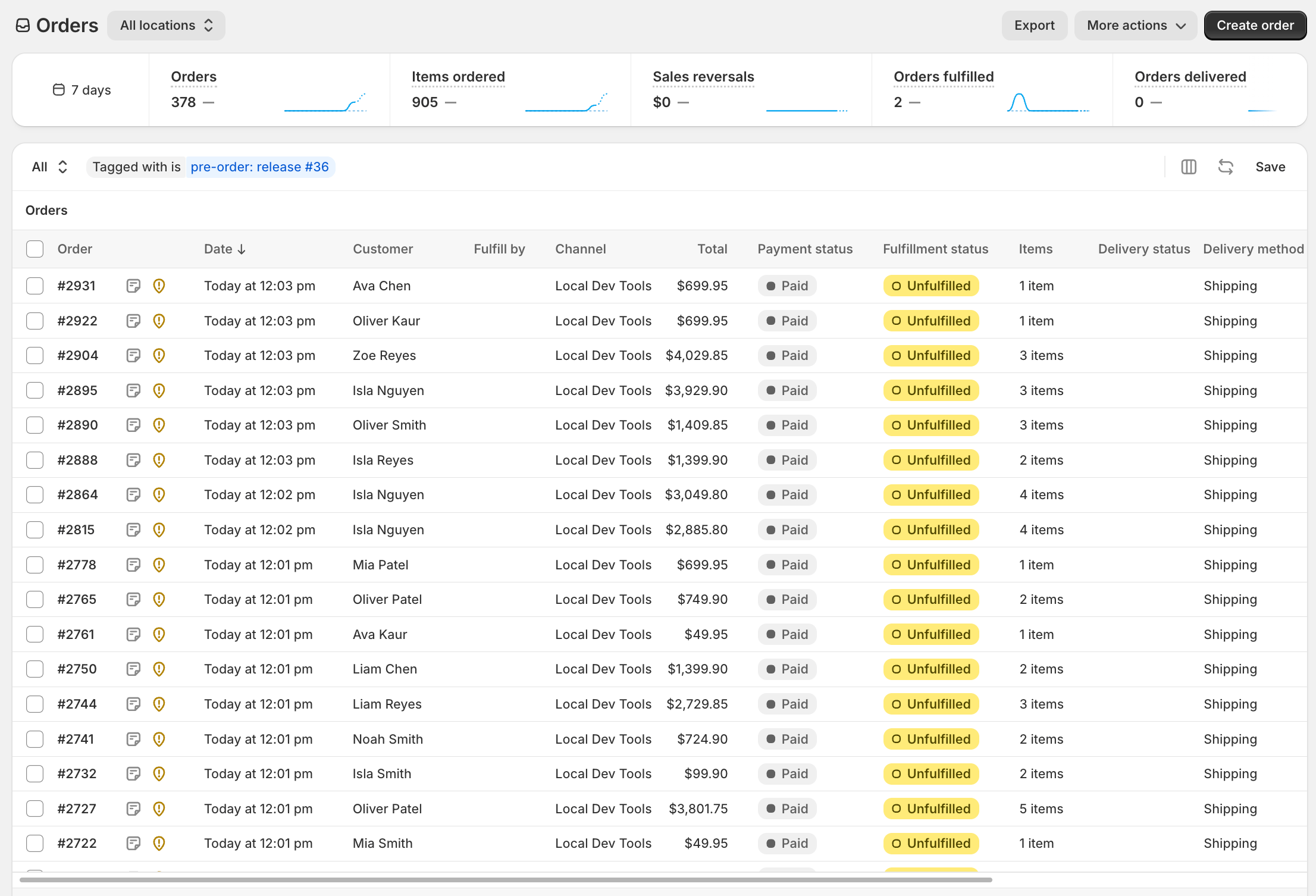
pre-order: release #36 - so you can filter the Orders list to exactly what went out in one release.
Releasing orders automatically
Automatic release is off by default - covered orders wait in Ready for you to confirm. Under Apps → Bloom → Pre-order → Settings → Auto-release orders: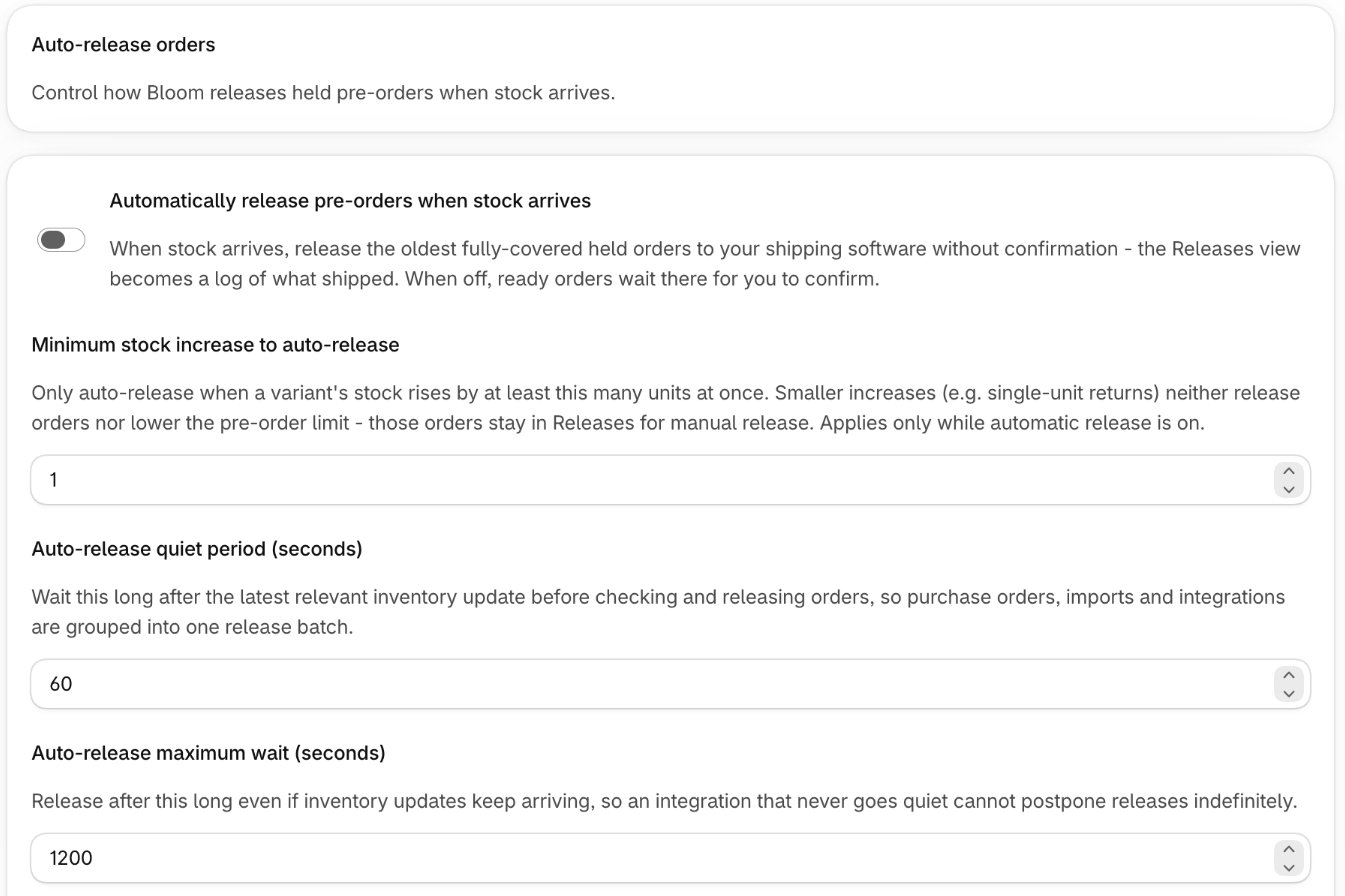
- Automatically release pre-orders when stock arrives - off by default. Releases the oldest fully covered held orders to your shipping software without confirmation. The Releases view becomes a log of what shipped. The three timing settings below only apply while it’s on.
- Minimum stock increase to auto-release - the smallest single stock arrival that triggers an automatic release. Smaller increases, like single-unit returns, neither release orders nor lower the pre-order limit - those orders stay in Releases for manual release.
- Auto-release quiet period (seconds) - a delay after the latest inventory update before releasing. Groups the tens or hundreds of variant updates that arrive seconds apart during imports and purchase orders into one release batch.
- Auto-release maximum wait (seconds) - caps how long Bloom will wait, so an integration that never goes quiet cannot postpone releases indefinitely.
- Automatically manage continue selling - on by default. Keeps Shopify’s Continue selling when out of stock in step with stock and the pre-order limit on variants you’ve turned pre-order on for.
- Reduce pre-order limit as stock arrives - on by default. Lowers the oversell limit by received stock, so stock allocated to held orders does not reopen pre-order sales. On shops with two or more markets, stock arriving at a market’s locations lowers that market’s override - see Pre-order by market.
Inventory statuses explained
- Bloom uses on hand inventory to decide if pre-orders can be fulfilled
- On hold is not unfulfilled. A held fulfilment order stays out of Shopify’s Unfulfilled list. Your 3PL should not ship it.
- Released means unfulfilled. Bloom removes its hold. Your fulfilment app can now import, allocate and dispatch the order.
- Available and on hand change together when you receive units. Bloom adds received units to Shopify’s Available inventory at the selected location. On hand rises by the same amount.
- Incoming is not on hand. A Shopify purchase order creates Incoming inventory. It cannot release an order until you receive the units.
Receive units in Bloom
If you would like to bulk update on hand inventory and release orders at once.- In Shopify admin, open Apps → Bloom.
- Go to Pre-order → Release orders.
- Enter the quantity in the On hand → Add field for each variant.
- Set Receiving at to the location taking the units.
- Open Preview release, review the orders, then click Add units & release orders.
received reason. It adds units at the selected receiving location only. The On hand figure can include other online-fulfilling locations.
The preview recalculates after your receipt. It shows the oldest orders now covered by stock. Confirming the receipt queues those orders for release in the same action.
Related
- Shipping & fulfilment apps - what your 3PL sees before and after release
- Pre-order data reference - Bloom’s
Pre-order: HoldandPre-order: Shiptags - Configure a pre-order product - set the variant oversell limit