
Klaviyo’s back-in-stock functionality is native to every paid Klaviyo plan. You don’t need any add-on - just the flow.
Before you start
Make sure you’ve already connected Klaviyo to Bloom and pushed at least one test sign-up. You’ll need a subscriber on file for the flow to fire against during testing.Steps
1. Enable back-in-stock in Klaviyo
- In Klaviyo, go to Settings → Other → Back in Stock.
- Click Enable Back in Stock.
- Configure the send frequency - how often Klaviyo can send back-in-stock emails to the same person (default: once per 24 hours).
- Click Save.
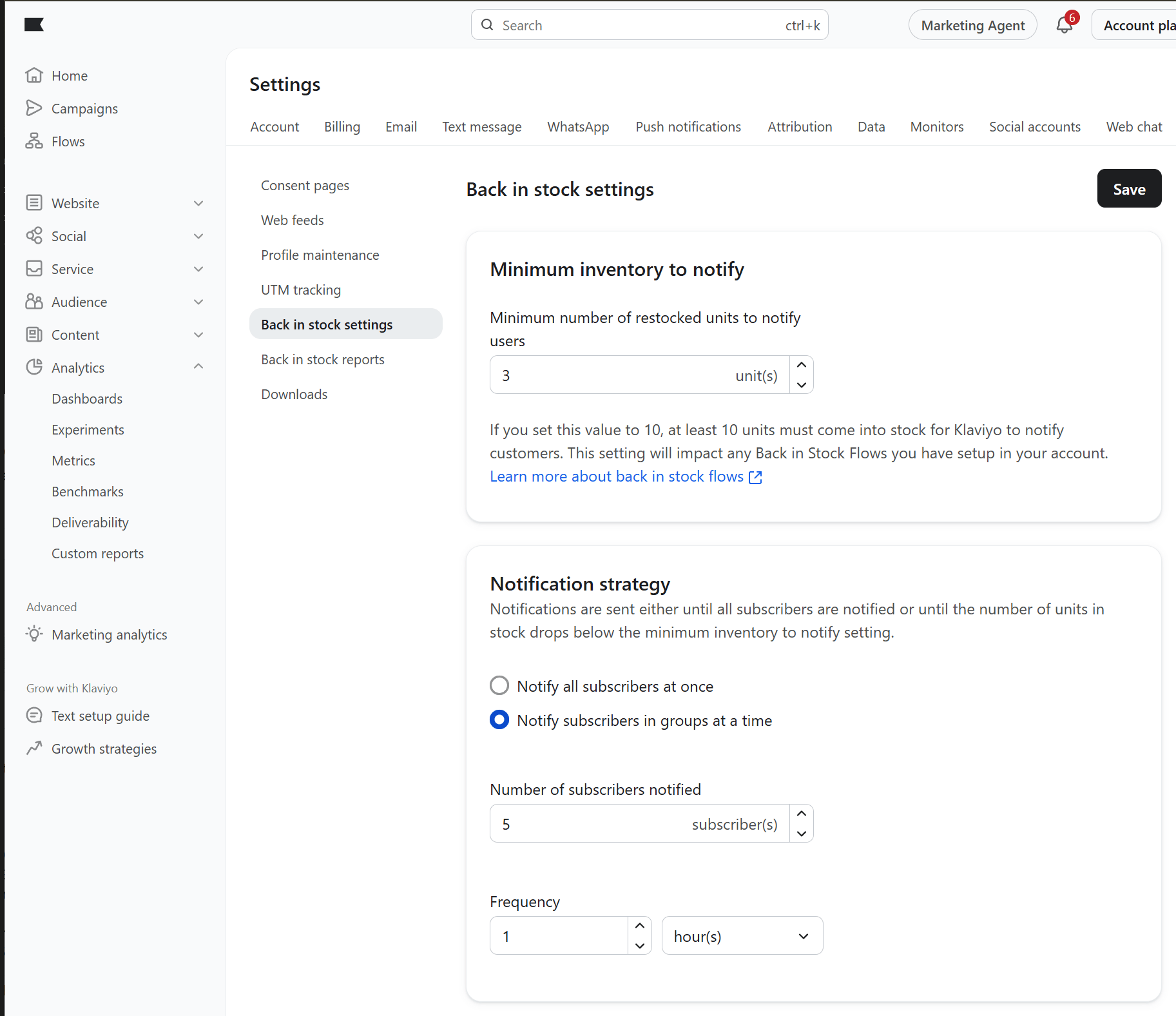
We recommend setting number of subscribers notified to 5 - 10. Klaviyo sends 5-10 emails each time a variant comes back in stock, and then resends to more subscribers every hour. This creates a steady flow of purchases and avoids a huge wall of ‘out of stock’.
We highly recommend setting Minimum number of restocked units to notify to 3 - 5 units (or more). This avoids emails being sent when stock is returned or administrative changes which can bump stock just over 0.
2. Build the flow
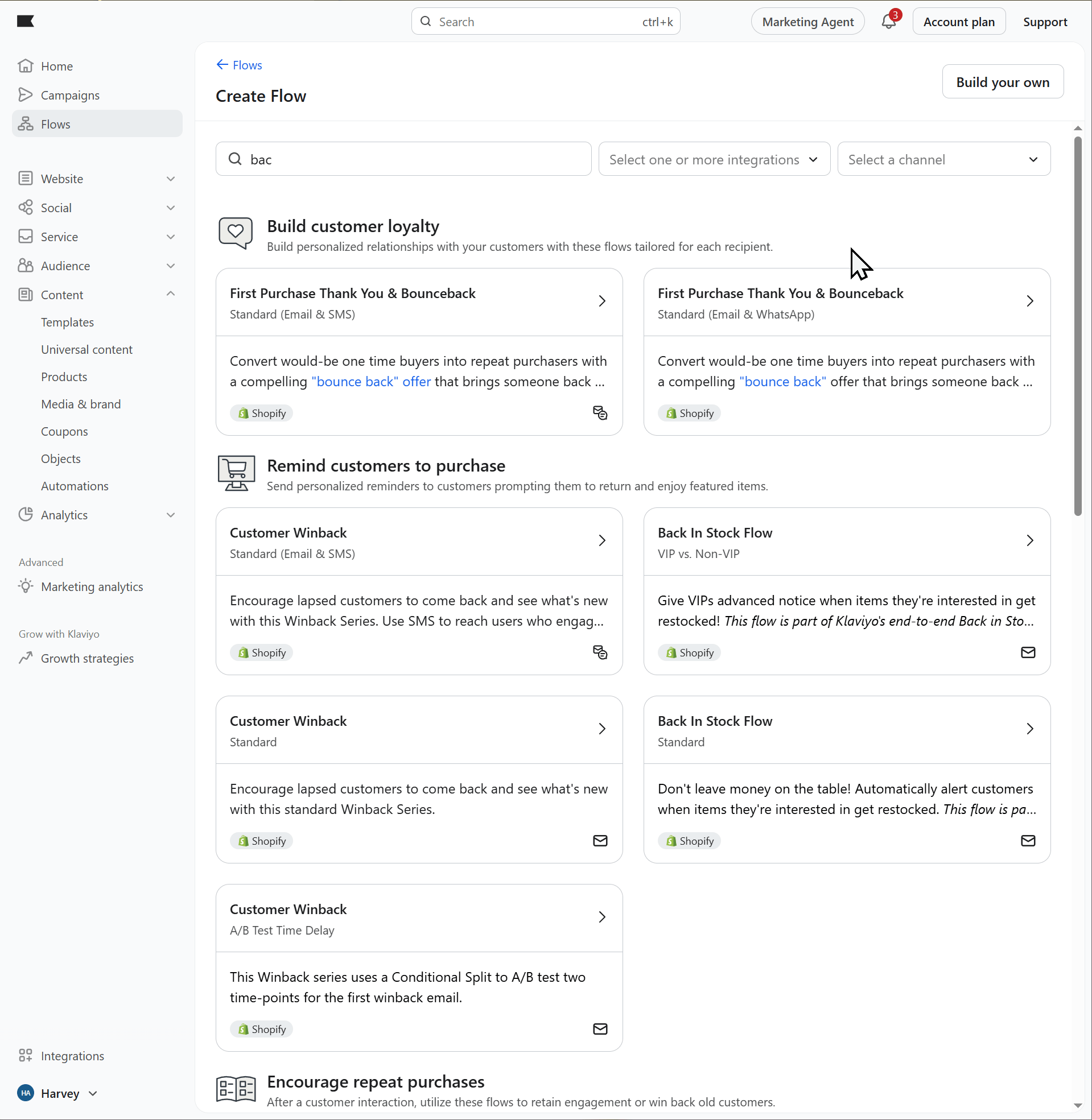
- In Klaviyo, go to Flows → Create Flow → Back in Stock template.
- Search for the Back in Stock and select the template.
- Confirm the trigger is set to the Back in Stock event.
- Customise the email - branding, copy, product block.
- (Optional) Add an SMS step in parallel for subscribers with phone numbers.
- Set the flow to Live.
Bloom adds UTM tracking to back-in-stock flow emails that don’t already carry UTMs it recognises -
utm_source=Klaviyo, utm_medium=email, utm_campaign=Back In Stock Flow. Your other custom parameters are kept. Bloom finds the flow by its Back in Stock trigger, or by “back in stock” or “notify me” in its name. If Bloom shows Reconnect Klaviyo, reconnect first. See Back-in-stock results.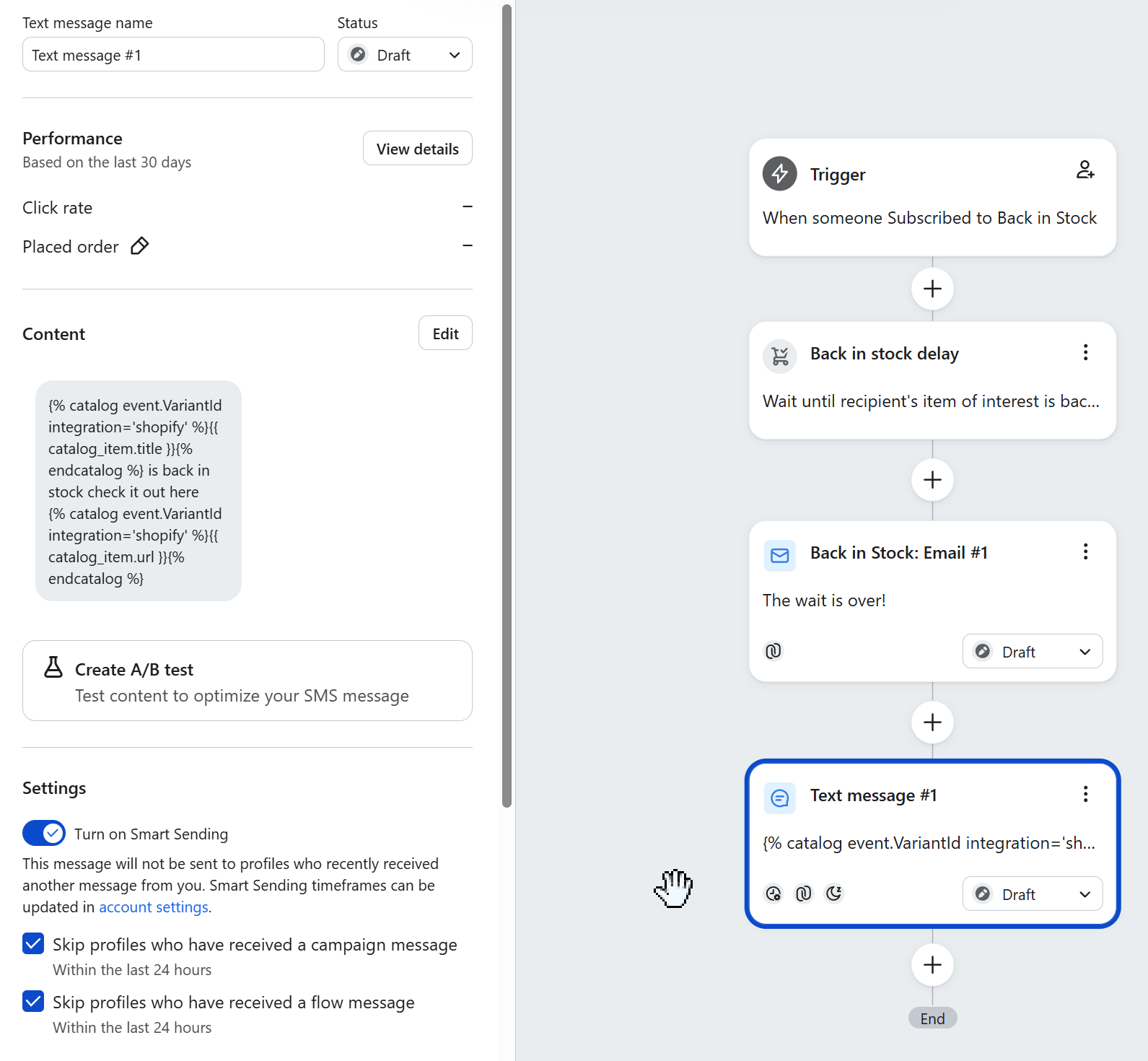
SMS snippet for product name and link
To configure an SMS you need to have set up SMS in Klaviyo, including getting a sending number approved.
3. Send yourself a test
- Set a variant’s inventory to 0 in Shopify.
- On the storefront, sign yourself up via the Notify Me form.
- Set inventory back above 0.
- You should receive the back-in-stock email (and SMS, if you configured one) within a few minutes - subject to the send-frequency cap you set in step 1.
Tips
- Send frequency matters. If you bulk-restock a product, every subscriber gets notified at once. A 24-hour cap prevents people getting hammered if you restock and sell out repeatedly.
- Use SMS sparingly. SMS conversion on back-in-stock is high but customers can find it intrusive. Many stores send email-first, SMS only for high-intent subscribers.
- Keep the email short. A photo, the product name, and a CTA button is enough. The customer already wants the product - don’t get in their way.