
Steps
Configure products in Bloom is the primary editor. You can also edit a single product or variant directly from Shopify’s product page - see From the Shopify product or variant page below.- In Shopify admin, open Apps → Bloom.
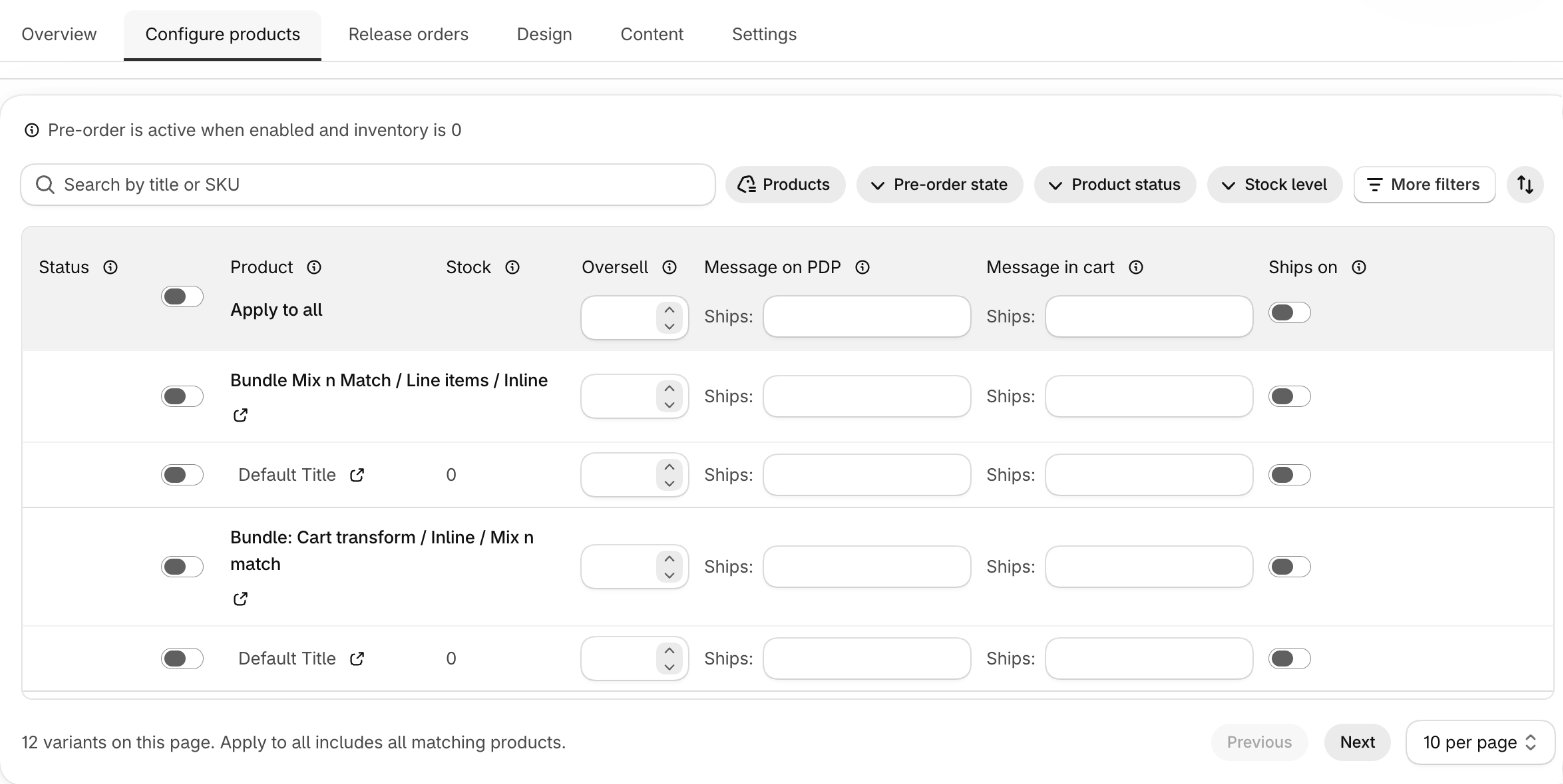
- Go to Pre-order → Configure products.
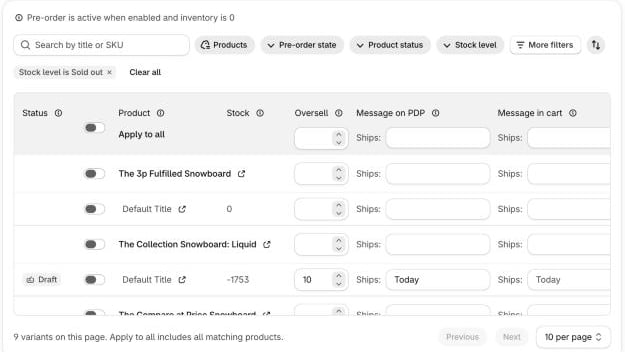
- Find the variants with the search and filter bar - search by title or SKU, or filter by product status, stock level, vendor, tag, product type or collection.
- Edit the fields below in the Apply to all row, or on a single product or variant row.
- Click Save.
Fields
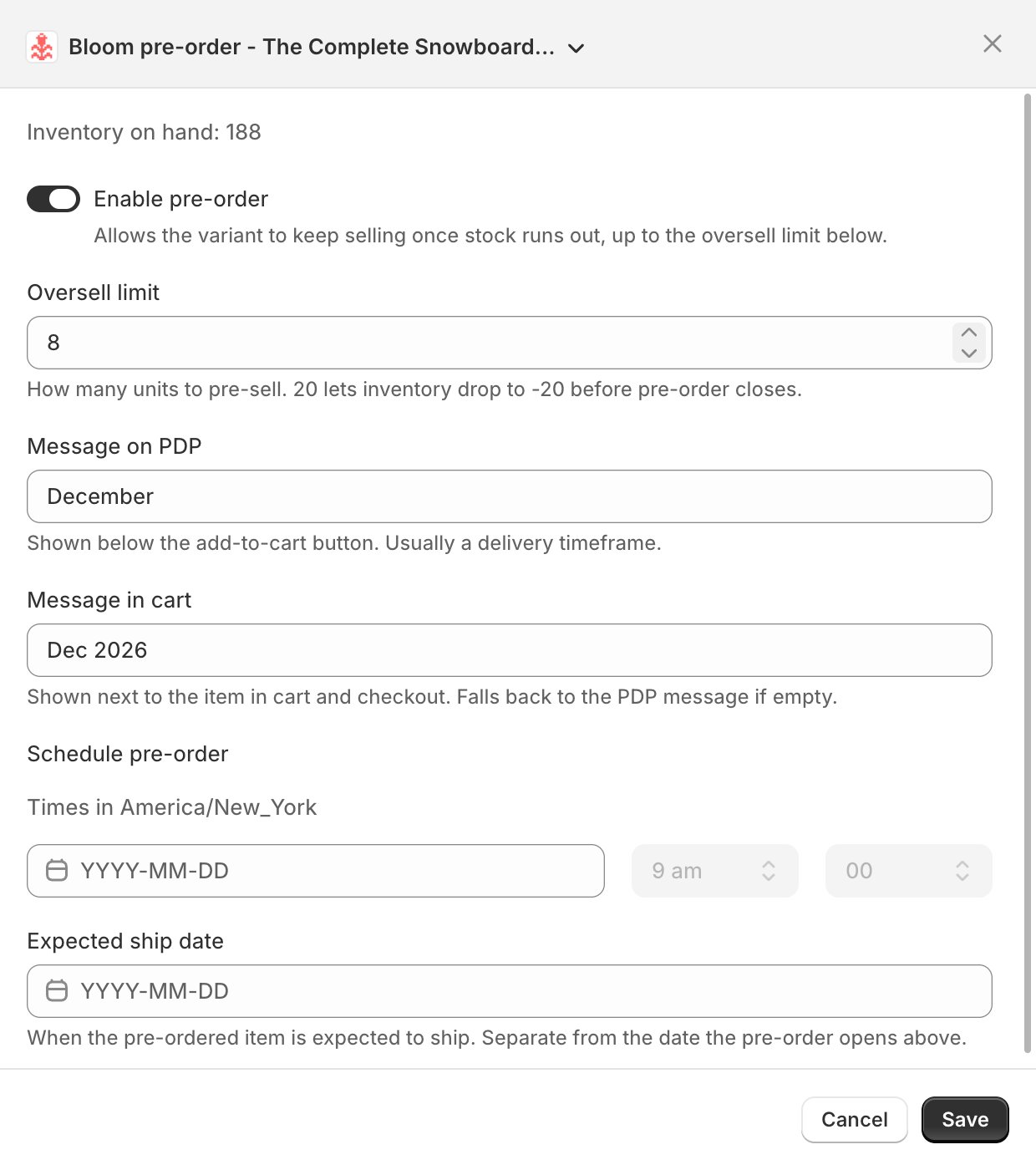
- Oversell limit - how many units you’re willing to oversell. Once a variant has this many pre-orders Bloom stops accepting more.
- Message on PDP - shown under Add to cart on the product page. Typically when you expect the product to ship, e.g. “Ships late July”. Prefixed with your cart line label (default
Ships:). - Message in cart - shown on each line item in the cart, on the checkout pre-order banner, and on the order status page. Usually a shorter version of the product page message.
- Ships on - the expected ship date for the variant. Separate from the date pre-order opens.
- Show pre-order after - if set, pre-order only goes live after this date & time. Times use your shop’s timezone. See Schedule a pre-order.
On shops with two or more markets, the Market overrides dropdown sets a different oversell limit, messages and dates per market. See Pre-order by market.
From the Shopify product or variant page
Edit a single product or variant inline from Shopify’s own product page - no jump to the Bloom admin.- In Shopify admin, open the product (or one of its variants).
- In the Purchase options card, find Bloom: Pre-order and click Manage.
- Edit the same fields listed above.
- Click Save.
- On a variant page, edits apply to that variant only.
- On a product page, edits apply to every variant of the product at once. Open the variant page for per-variant edits.
Bulk edit by CSV
Export variants from Configure products, edit the file, then import it back. See Products CSV.Storefront defaults
Message placement (in Pre-order → Design), the cart line label, and the checkout purchase option name are store-wide - see Pre-order settings.When pre-order shows on the storefront
A variant must meet all of these conditions:- Bloom is enabled in theme
- Pre-order is enabled on the product - Bloom manages Shopify’s Continue selling when out of stock switch for you
- Oversell limit is set in Bloom and is greater than zero
- The number of pre-orders is less than the oversell limit
- Variant is out of stock in Shopify
- It is after the Scheduled date & time [Only applies if set]