
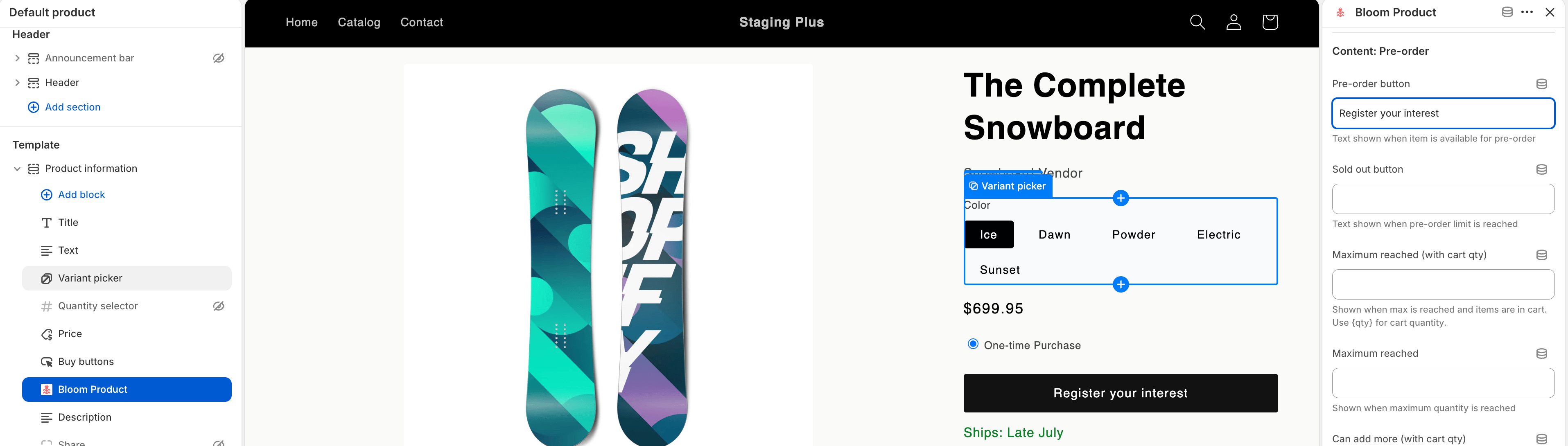
What you can override
- Colours - button, text, sold-out, hover and focus states.
- Messaging & content - e.g.
Reserve nowon a launch page,Pre-ordereverywhere else. - Cart messages - line item and cart summary text.
- Settings - various settings can be overridden
When you’d use it
Product template - run a campaign or launch page with louder colours and different copy, while the rest of the catalogue uses your standard styling. Market translation - the pre-order button and cart message for each language. Shopify serves the right copy automatically based on the shopper’s language. Run different rules per market:- Don’t offer pre-order in markets you don’t ship to yet - remove the Bloom Product block from that market’s template.
- Match each market’s tone:
Ships late Julyin English, the equivalent in French. - Use market-specific colours where the same product has a different look.
How to edit
- From Shopify admin, go to Online Store → Themes → Customise
- Switch to the template, locale, or market you want to override
- Select the Bloom (Theme block) or Bloom Product block
- Edit the fields you want to override.
- Click Save.