
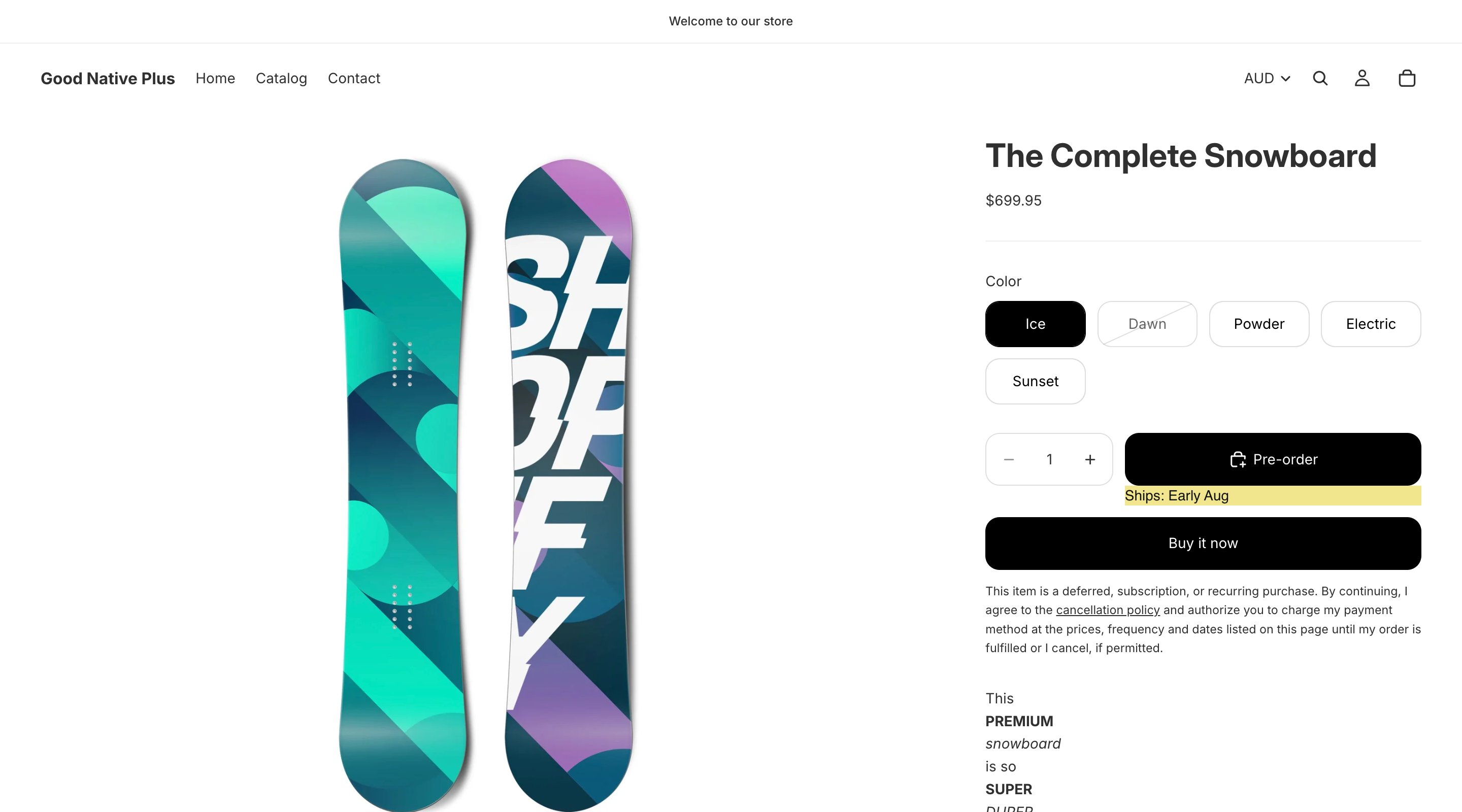
How it works
- Inventory goes negative. When stock hits zero, pre-orders push inventory below 0 until they reach your oversell limit for that variant. Shops with two or more markets get a pool per market - see Pre-order by market.
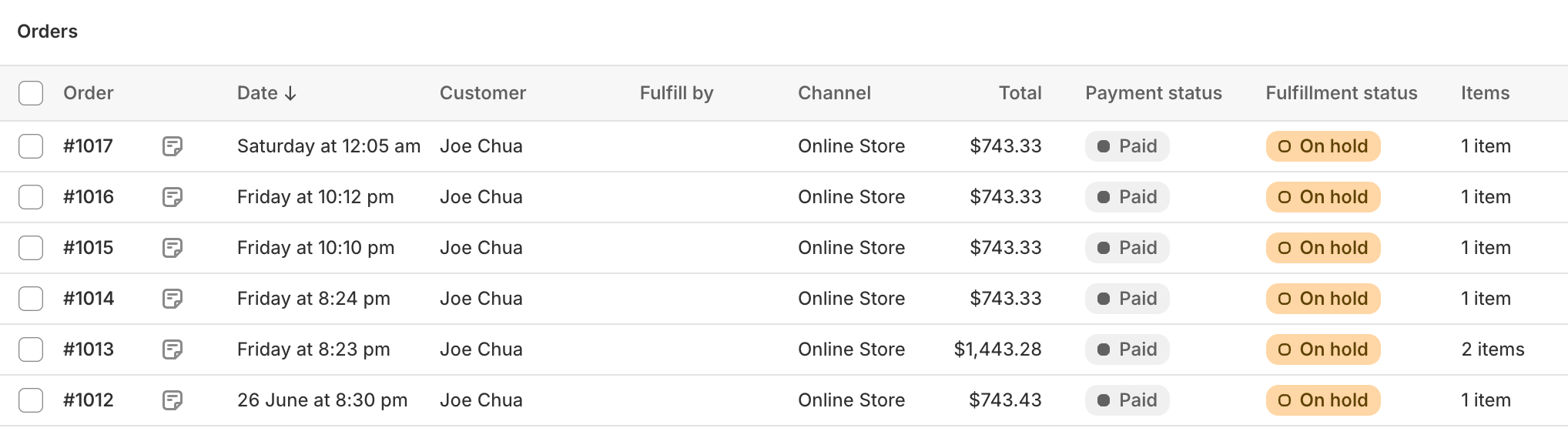
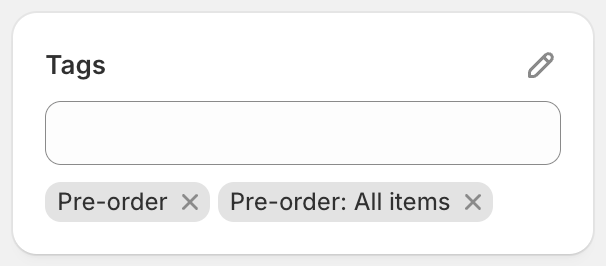
- Orders are tagged. Every pre-order order is tagged
Pre-order, plus eitherPre-order: All items(every item) orPre-order: Some items(mix). Filter and automate on these. - Messaging follows the customer. Your ship-date message (e.g.
Ships late July) appears under Add to cart, on each cart line, and at checkout. - Customers can cancel themselves from their order status page until you start preparing the order. Disable if you’d rather handle it manually.
- Optional: Set a date to start pre-order after a specific day and time.
What a pre-order looks like
The customer sees:- A Pre-order button on the product page with your ship-date message
- A
Ships:label on each pre-order cart line - A notice at checkout
- The current ship date on their order status page after purchase
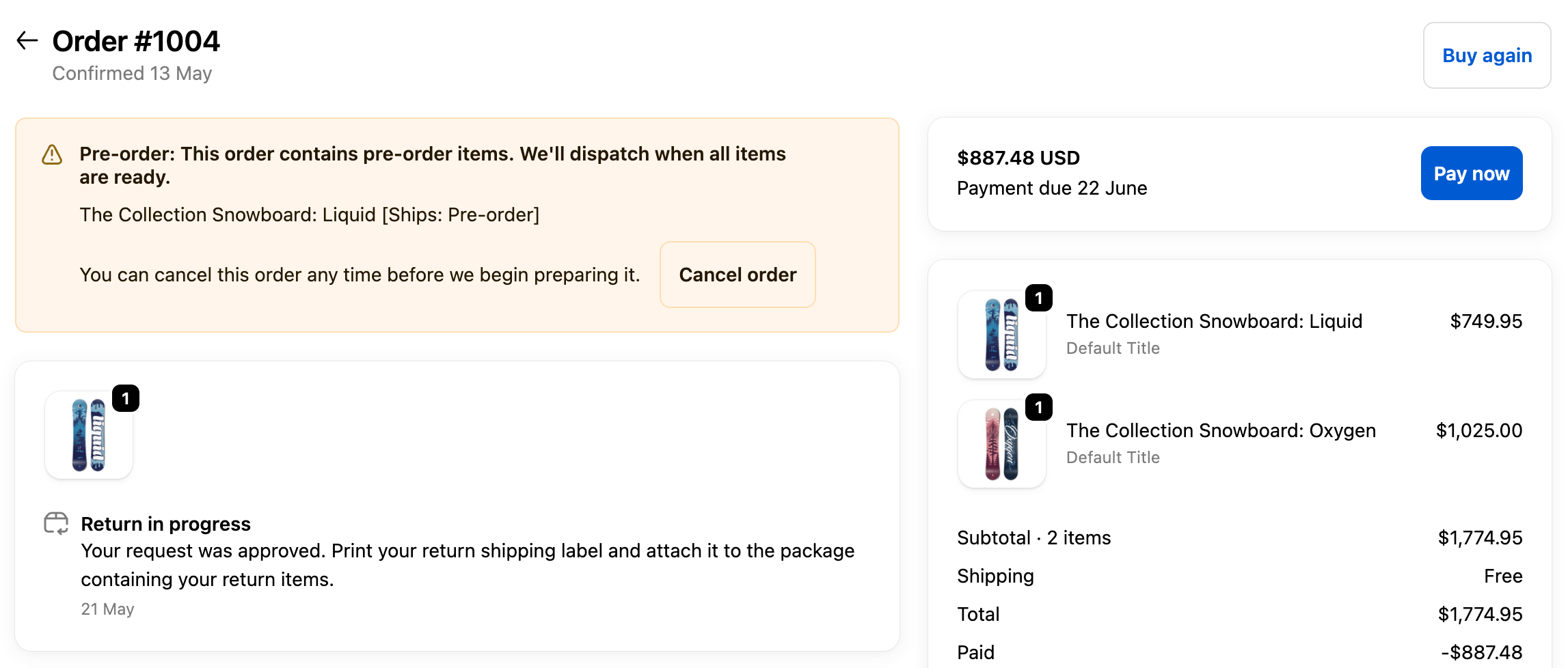
- The
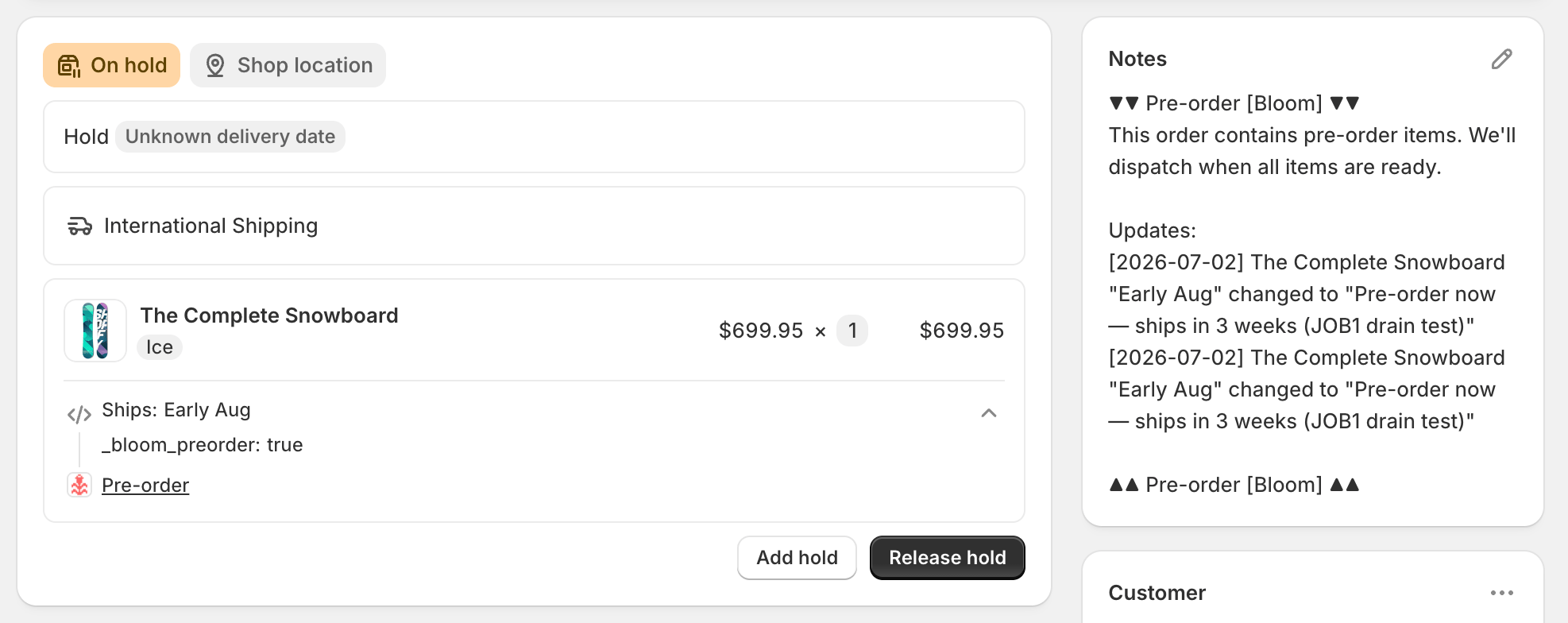
Pre-orderorder tag, plusPre-order: All itemsorPre-order: Some items - The cart message on each line
- A Bloom block in the order note with a pre-order summary and an
Updates:history of any cart message changes
What you need to do
- Follow the pre-order quick start - theme embed, design, products, checkout blocks
- Configure each pre-order product
- Release orders when stock arrives - receive units, confirm releases, or automate both
Optional configuration
- Schedule date for pre-order to open
- Update your order confirmation email so customers understand they bought a pre-order
- Choose how mixed orders ship - together, or in-stock first and pre-order later
- Check your shipping or fulfilment app - most need no setup
- Adjust tracking events
Tracking
Bloom emits events for popular analytics platforms once the shopper grants analytics consent.- Pre-order viewed
- Pre-order added to cart
- Pre-order checkout started