
When you’d add it
- You want a different button colour or message on one product template (e.g. a launch page).
- You sell in multiple markets and want different cart messages or colours per market.
- You translate copy per locale and want Bloom’s button text to follow.
Steps
- From Shopify admin, go to Online Store → Themes.
- On your live theme click Customise.
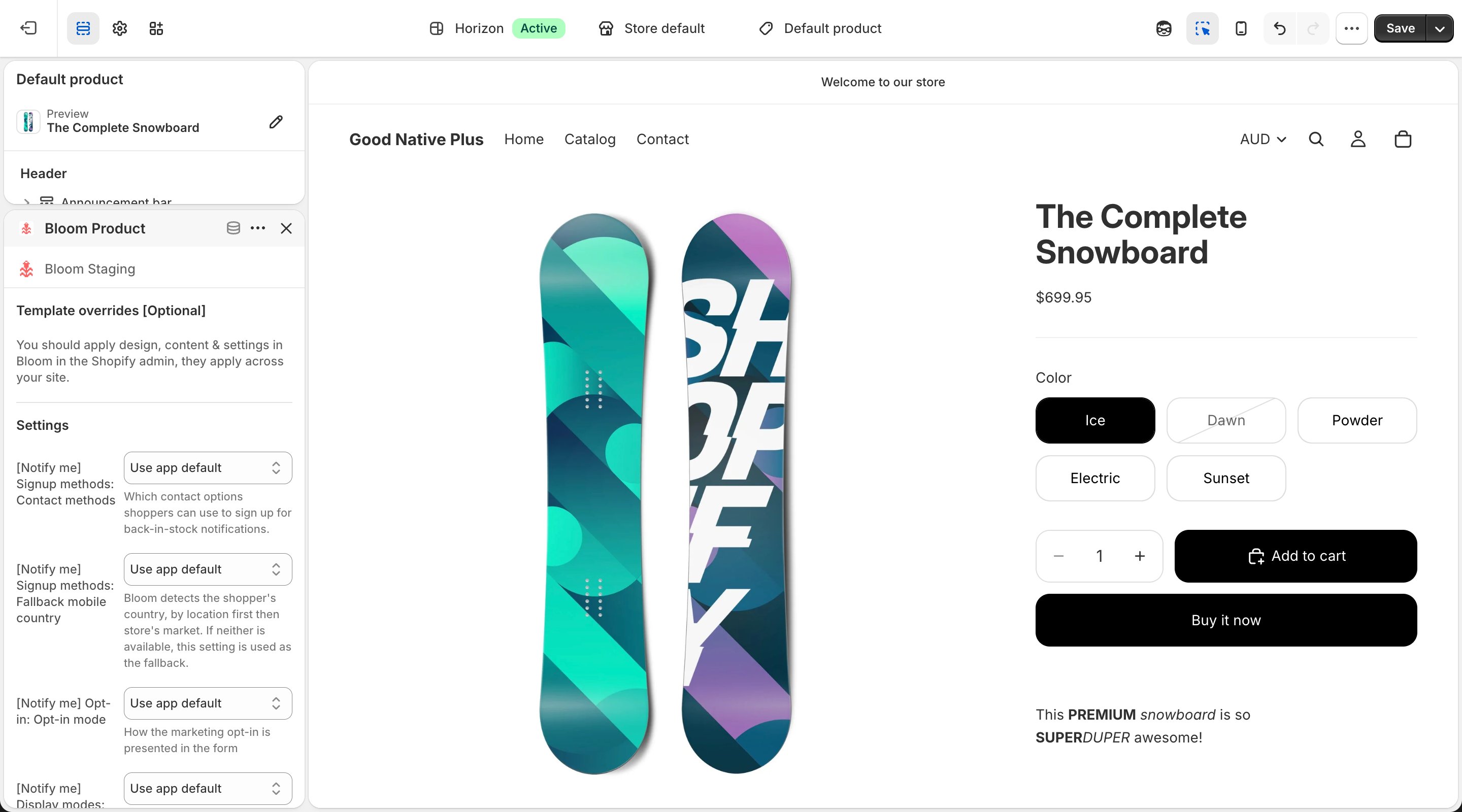
- Switch the template selector to Product (or the specific template / market / locale you want to override).
- Select your product template’s main section.
- Click Add block and pick Bloom Product under Apps.
- Place it directly below your Add to cart button.
- Edit the override fields in the block sidebar.
- Click Save.
Some themes like Turbo don’t allow app blocks inside the product section. Add the Bloom Product block as a section under the product information section instead.
What you can override
- Colours - button, text, sold-out, hover and focus states.
- Messages - pre-order button label, cart messages, Notify Me button label and form heading.
- A subset of layout settings.