Data
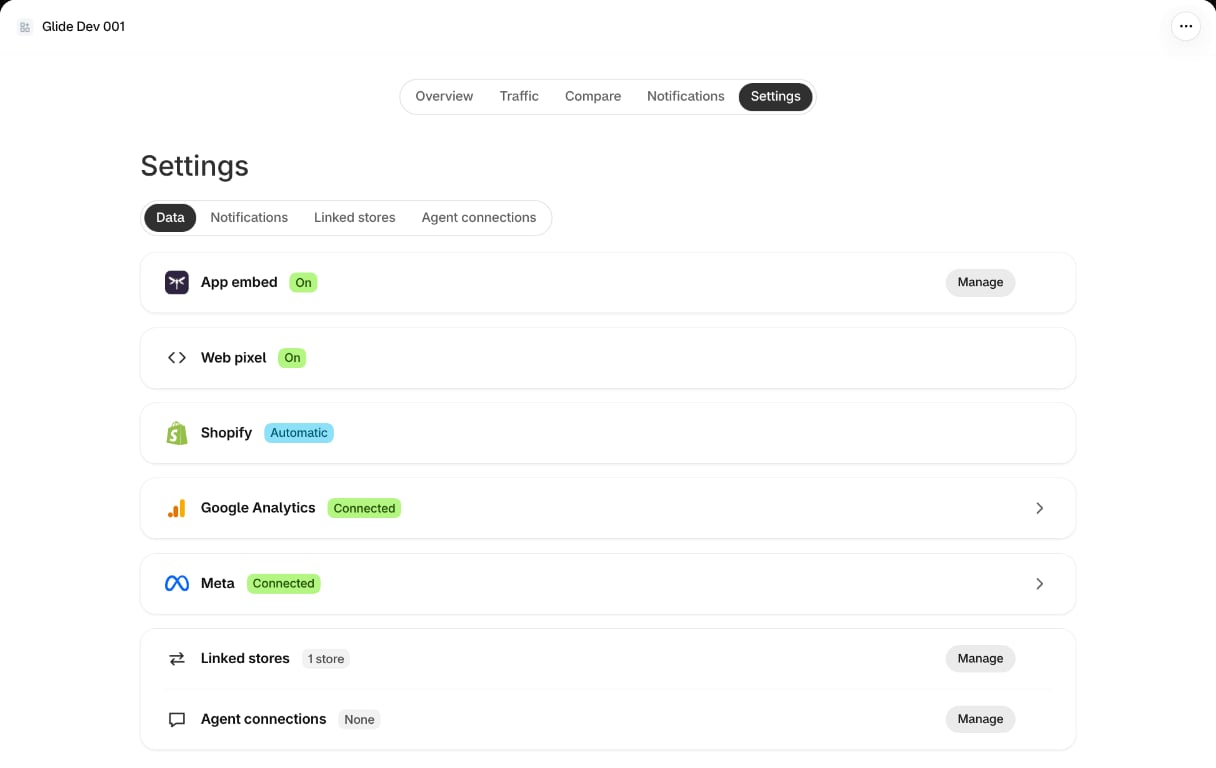
Each source is a row with a status badge and an action. Click the chevron for detail.- App embed. On or Off. Turn on opens the theme editor; Manage opens it when already on. Glide can’t see visits without it.
- Web pixel. Adds consenting visitors’ page views to your visitor types. Reads Off until you click Turn on, or Approve permission when Shopify needs you to approve a new scope. Hidden when the pixel isn’t available for the store.
- Shopify. Automatic. Nothing to set up.
- Google Analytics. Connect starts Google’s sign-in; Reconnect appears when the connection lapsed. Once connected, the row lists each store’s Store, Property and Domains. Domains reads None when empty. Disconnect removes it.
- Meta. Connect asks for a Pixel ID and System user access token. Once connected, Replace swaps them and Disconnect removes the connection for every linked store.
Notifications
Connect Slack, pick a default channel, then route each alert.- Click Connect Slack and approve Glide in your workspace.
- Choose the Default channel. Private channels need the Glide app invited first.
- Optional: click Send test message to check it arrives.
- In Alert routing, set a channel for each alert type and level.
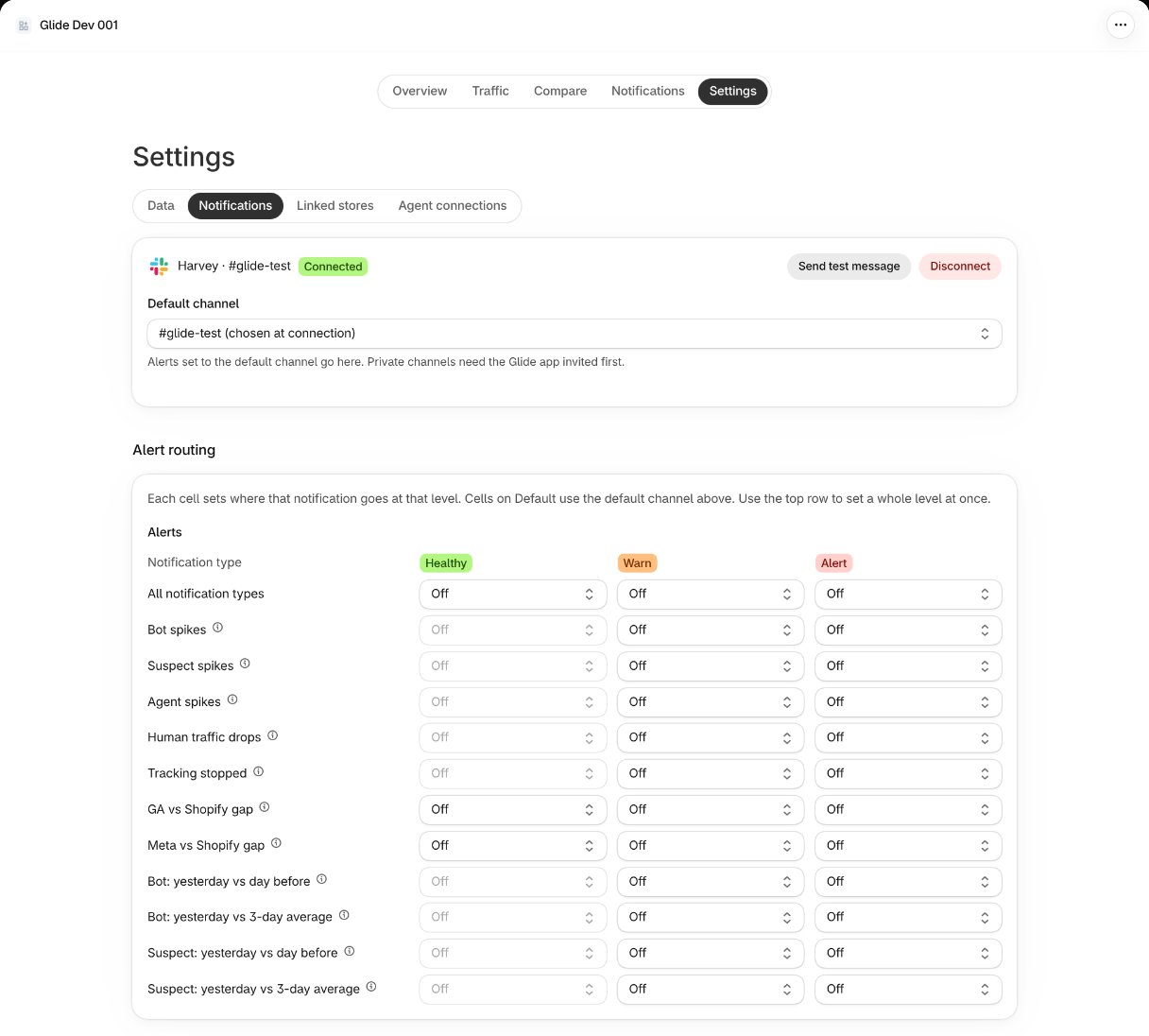
Only the store that owns your linked stores can change alert routing. Other members see it read only.
Linked stores
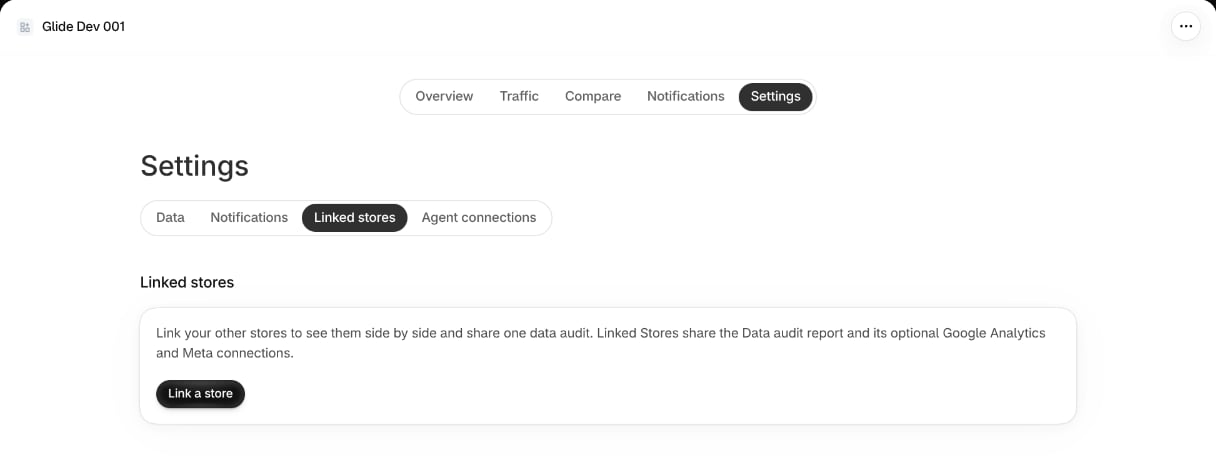
Link your other stores to see them side by side and share one data audit. Linked stores share the audit report and its optional Google Analytics and Meta connections.- Click Link a store and enter the Store address, such as name.myshopify.com.
- On the invited store, open Settings → Linked stores and click Accept or Decline.
- Status. “Linked, working”, “Linked, embed off”, “Linked, no data for 3 days” or Invited.
- Embed. On or Off.
- Human, Bot, Agent, Suspect. Share of recorded traffic by visitor type.
- Last traffic. The date Glide last recorded a page view.