> ## Documentation Index
> Fetch the complete documentation index at: https://help.goodnative.co/llms.txt
> Use this file to discover all available pages before exploring further.
# Splitting orders
> Choose whether Shopify orders containing pre-order and in-stock items ship together as one held order, or split so in-stock items dispatch now and pre-order items later.
Split shipping is a Shopify and Bloom setting, and depending on how your Shipping / Inventory Management Software operates it may automatically split orders into two.
## By default Bloom puts all items on hold
When an order contains a pre-order item, Bloom holds the entire order so in-stock items don't ship before the pre-order stock arrives. Release a hold from the order page in Shopify admin.
 ### To enable split shipping
1. In Shopify admin, open **Apps → Bloom**.
2. Go to **Settings → Pre-order → Order splitting**.
3. Tick **Split orders with pre-order and non-pre-order items**.
4. Click **Save**.
### To enable split shipping
1. In Shopify admin, open **Apps → Bloom**.
2. Go to **Settings → Pre-order → Order splitting**.
3. Tick **Split orders with pre-order and non-pre-order items**.
4. Click **Save**.
 ## Turn split shipping on or off in Shopify
1. In Shopify admin, go to [**Settings → Shipping and delivery**](https://admin.shopify.com/settings/shipping).
2. In the **Shipping** section, click **split shipping** (or **Manage** if you don't have fulfillable inventory settings enabled).
3. In the modal, tick or untick **Show split shipping in checkout**.
4. Click **Save**.
## Turn split shipping on or off in Shopify
1. In Shopify admin, go to [**Settings → Shipping and delivery**](https://admin.shopify.com/settings/shipping).
2. In the **Shipping** section, click **split shipping** (or **Manage** if you don't have fulfillable inventory settings enabled).
3. In the modal, tick or untick **Show split shipping in checkout**.
4. Click **Save**.
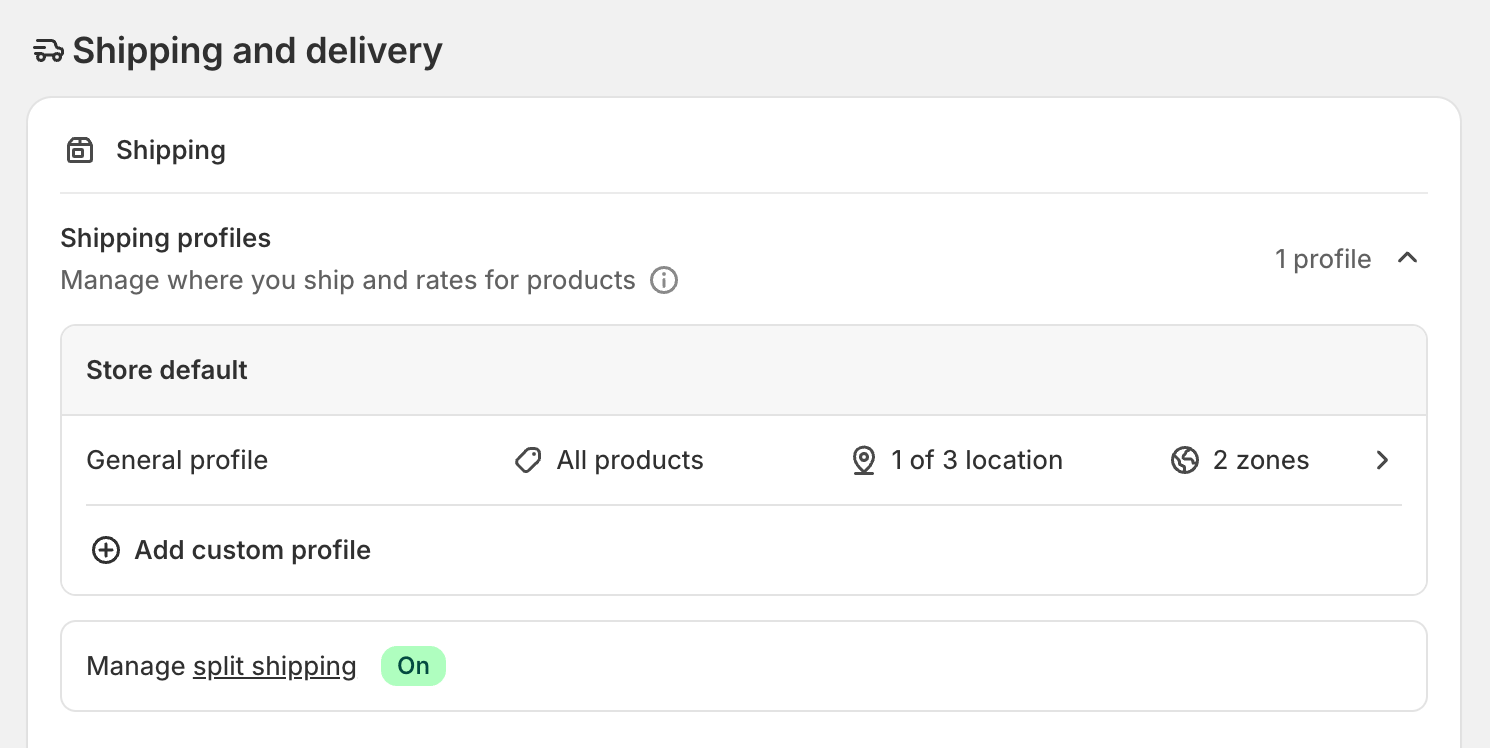
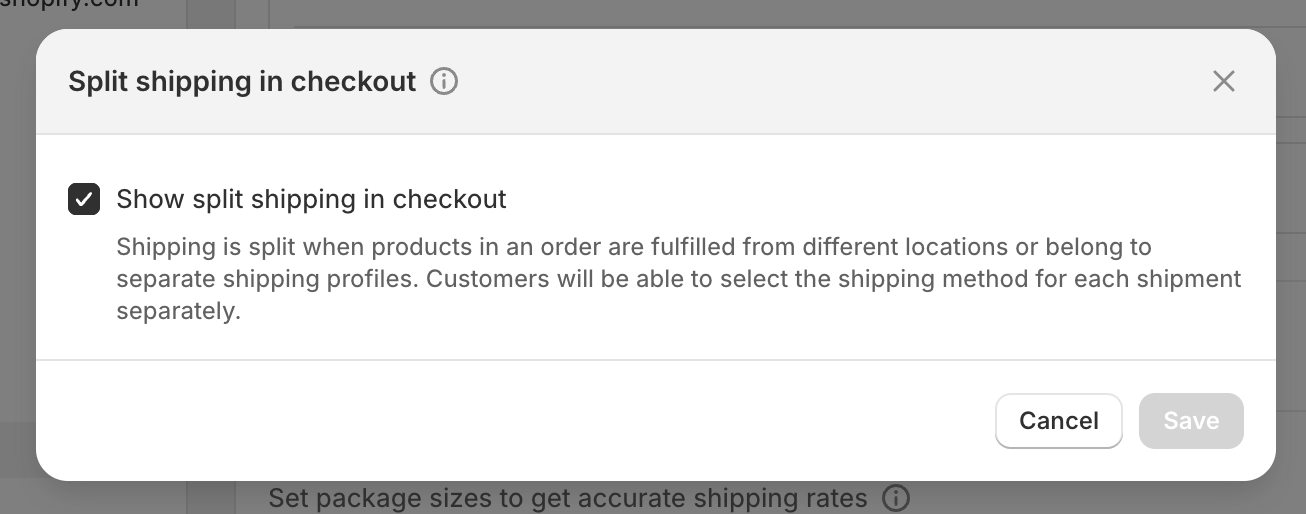 * **On** - a mixed cart shows separate shipments at checkout. In-stock items ship now, pre-order items ship later. The customer picks a shipping method for each shipment.
* **Off** - the whole order ships together once every item is ready.
## How Bloom explains it
Bloom communicates your delivery approach across every surface, so the customer knows what to expect:
* **Cart** - the pre-order message on each cart line.
* **Checkout** - the pre-order banner (Shopify Plus only).
* **Thank you page** - a pre-order notice straight after the order.
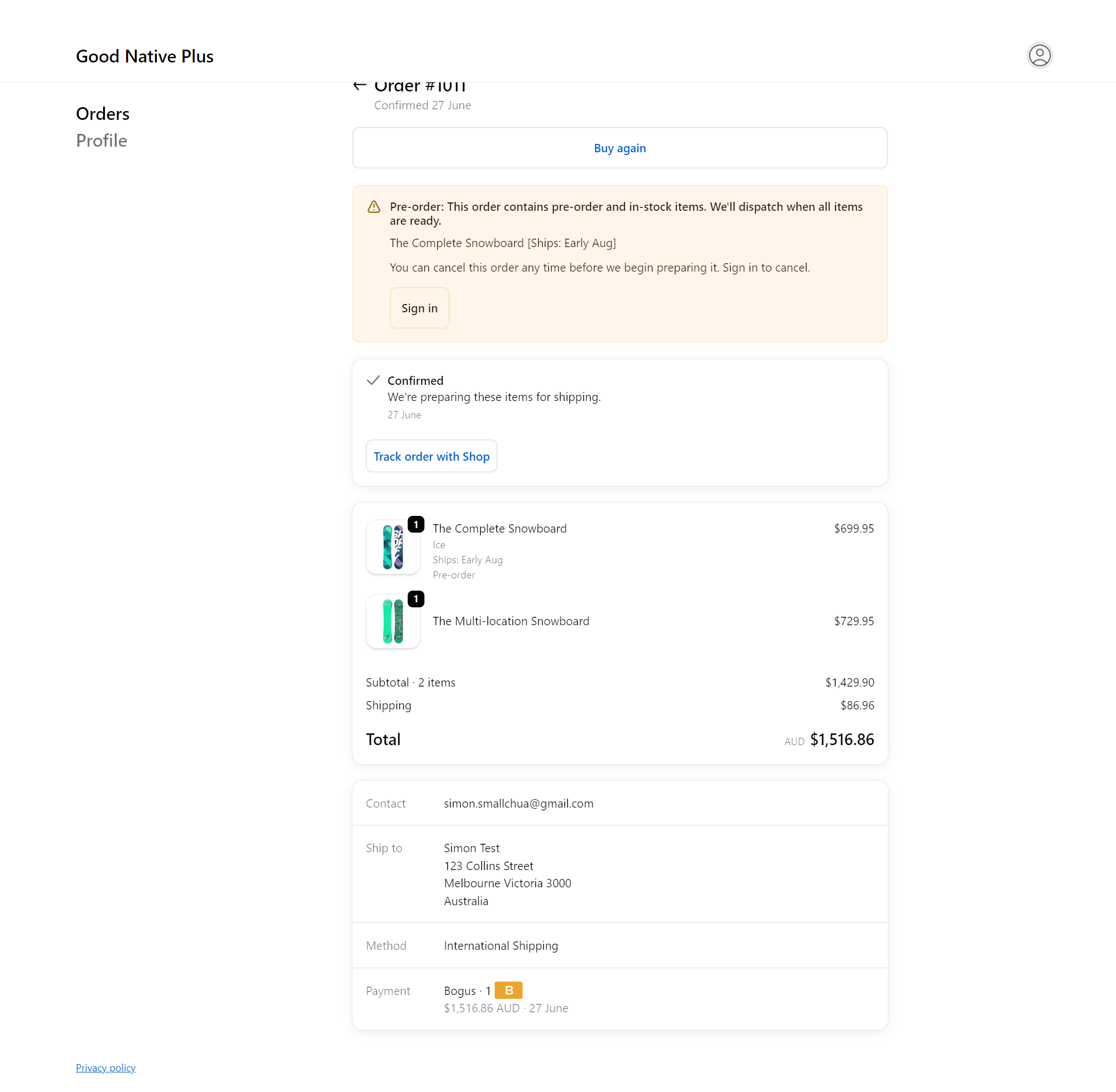
* **Order status page** - a per-line ship date and a pre-order notice. See [the quick start](/bloom/quick-start) to add the block.
* **On** - a mixed cart shows separate shipments at checkout. In-stock items ship now, pre-order items ship later. The customer picks a shipping method for each shipment.
* **Off** - the whole order ships together once every item is ready.
## How Bloom explains it
Bloom communicates your delivery approach across every surface, so the customer knows what to expect:
* **Cart** - the pre-order message on each cart line.
* **Checkout** - the pre-order banner (Shopify Plus only).
* **Thank you page** - a pre-order notice straight after the order.
* **Order status page** - a per-line ship date and a pre-order notice. See [the quick start](/bloom/quick-start) to add the block.
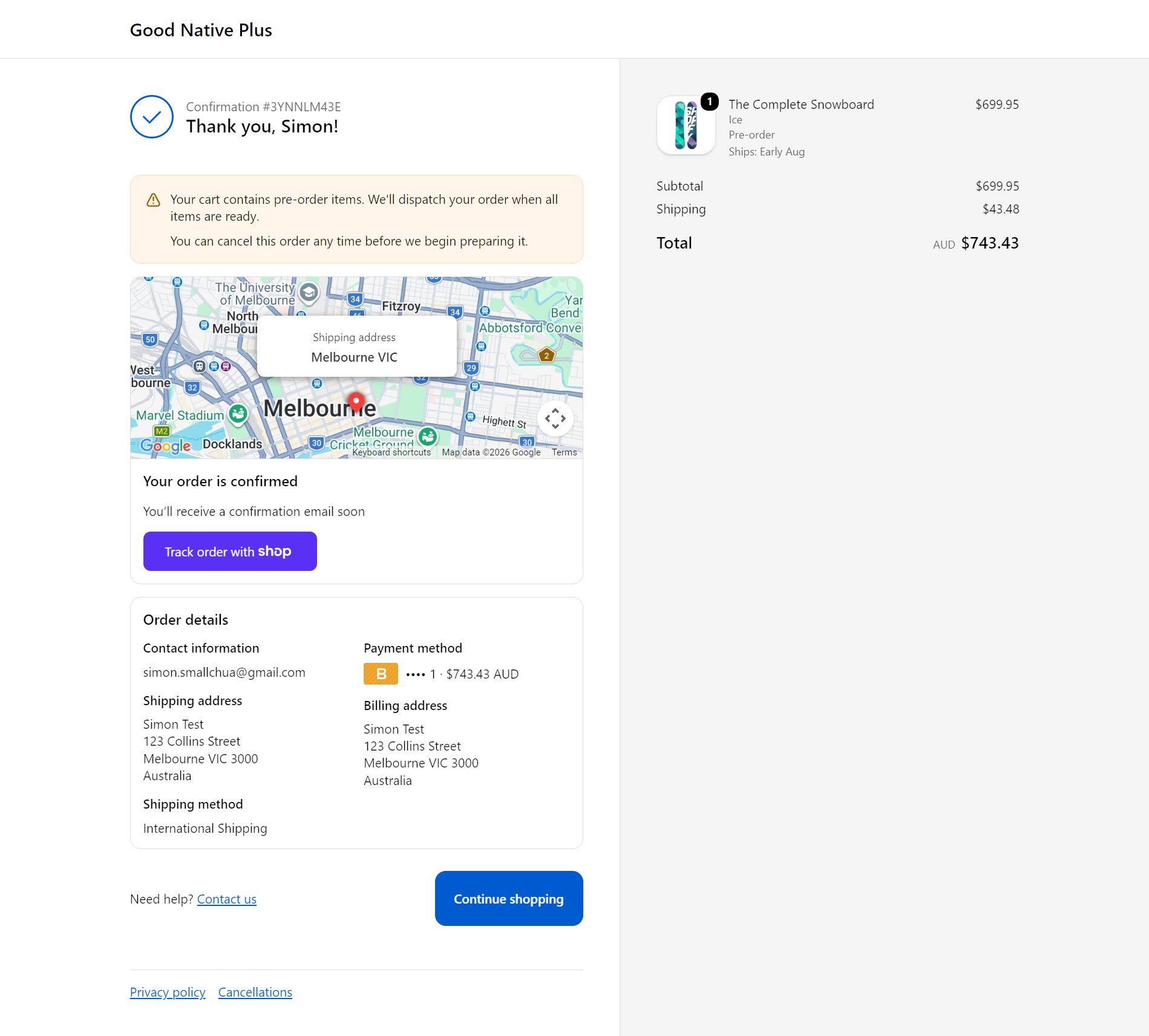 The order status page wording adapts to the order. A fully pre-order order tells the customer everything ships when stock arrives:
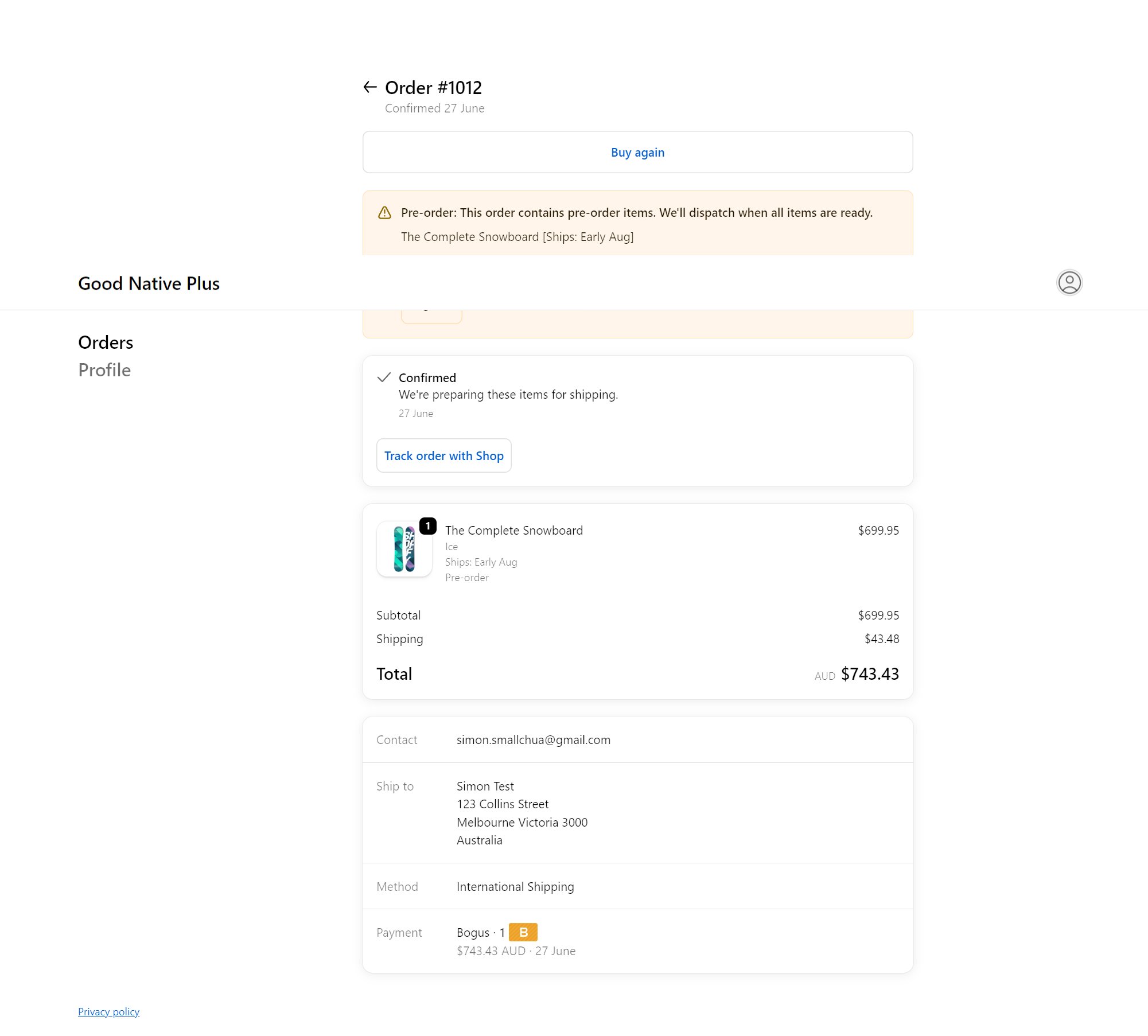 A mixed order names the in-stock and pre-order split:
 Match your cart and email copy to this setting. If you keep orders together, don't tell shoppers their in-stock items ship first - and vice versa.
## Related
* [Pre-order order confirmation email](/bloom/pre-order/emails) - separate messaging for fully-pre-order and mixed orders
* [Configure a pre-order product](/bloom/pre-order/product-config) - where you set the cart message
Match your cart and email copy to this setting. If you keep orders together, don't tell shoppers their in-stock items ship first - and vice versa.
## Related
* [Pre-order order confirmation email](/bloom/pre-order/emails) - separate messaging for fully-pre-order and mixed orders
* [Configure a pre-order product](/bloom/pre-order/product-config) - where you set the cart message