> ## Documentation Index
> Fetch the complete documentation index at: https://help.goodnative.co/llms.txt
> Use this file to discover all available pages before exploring further.
# Pre-order overview
> How Bloom's pre-orders work on Shopify: oversell limits, automatic order tagging, storefront messaging, and per-variant launch scheduling.
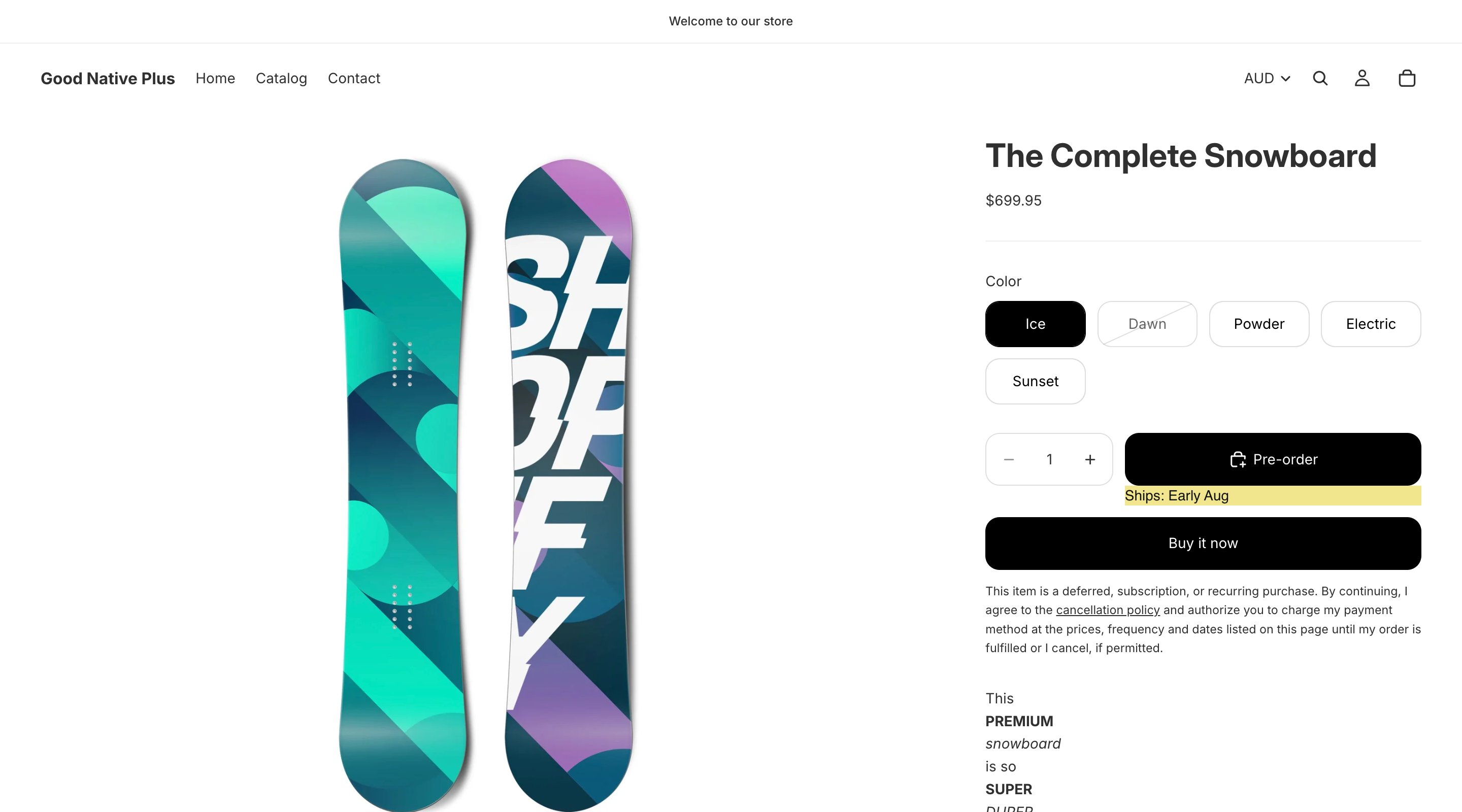
Pre-order lets shoppers buy a product before stock arrives. When a variant runs out, the **Add to cart** button turns into **Pre-order** with a ship-date message. Orders take inventory negative until they hit your **oversell limit**.
 ## How it works
* **Inventory goes negative.** When stock hits zero, pre-orders push inventory below 0 until they reach your **oversell limit** for that variant.
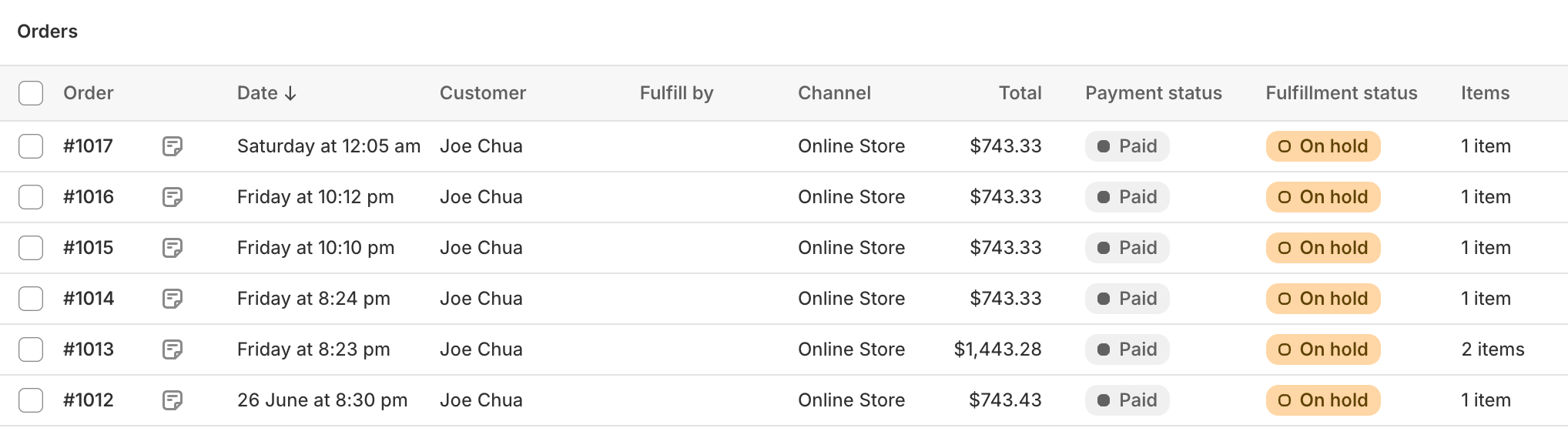
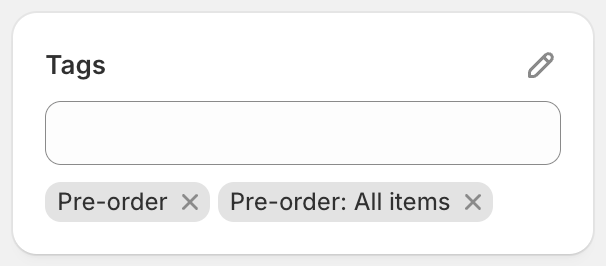
* **Orders are tagged.** Every pre-order order is tagged `Pre-order`, plus either `Pre-order: All items` (every item) or `Pre-order: Some items` (mix). Filter and automate on these.
* **Messaging follows the customer.** Your ship-date message (e.g. `Ships late July`) appears under **Add to cart**, on each cart line, and at checkout.
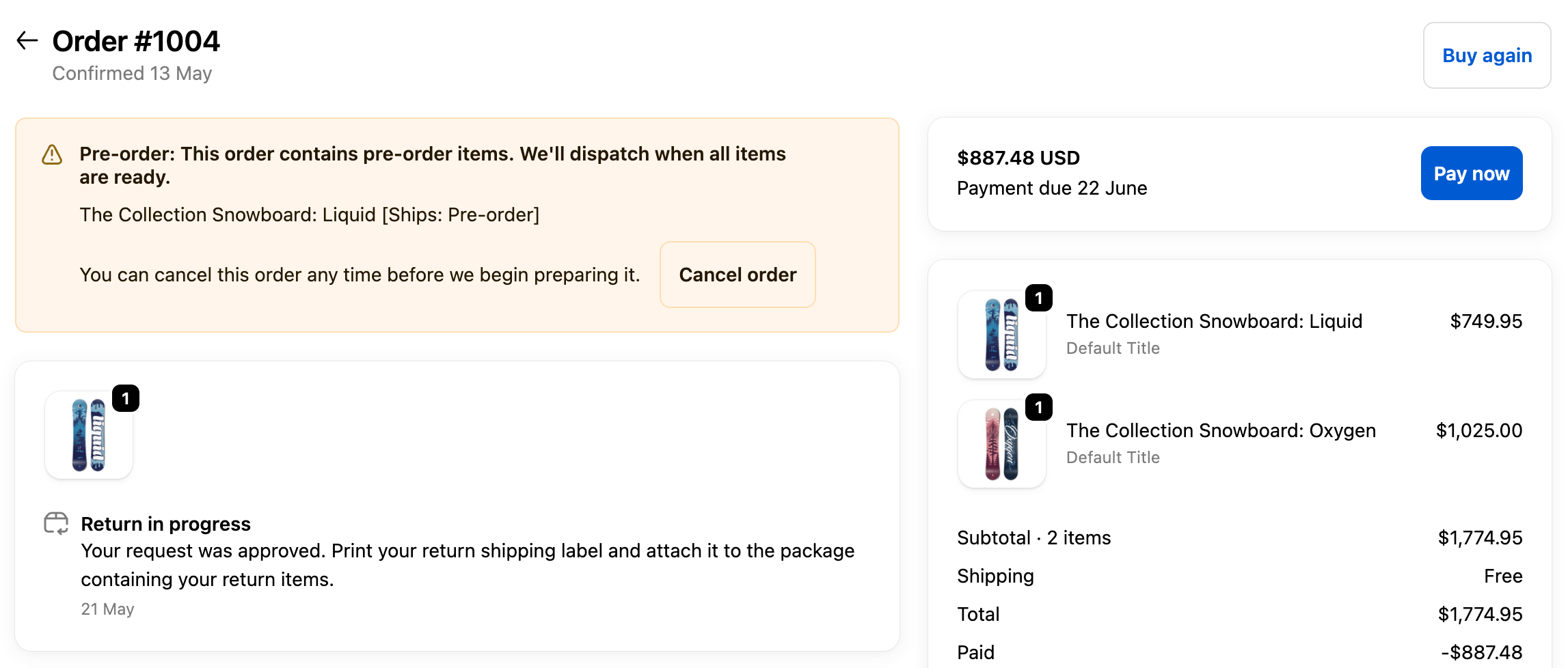
* **Customers can cancel themselves** from their order status page until you start preparing the order. [Disable if you'd rather handle it manually](/bloom/pre-order/cancellation).
* **Optional: Set a date** to start pre-order after a specific day and time.
## What a pre-order looks like
**The customer sees:**
* A **Pre-order** button on the product page with your ship-date message
* A `Ships:` label on each pre-order cart line
* A notice at checkout
* The current ship date on their order status page after purchase
## How it works
* **Inventory goes negative.** When stock hits zero, pre-orders push inventory below 0 until they reach your **oversell limit** for that variant.
* **Orders are tagged.** Every pre-order order is tagged `Pre-order`, plus either `Pre-order: All items` (every item) or `Pre-order: Some items` (mix). Filter and automate on these.
* **Messaging follows the customer.** Your ship-date message (e.g. `Ships late July`) appears under **Add to cart**, on each cart line, and at checkout.
* **Customers can cancel themselves** from their order status page until you start preparing the order. [Disable if you'd rather handle it manually](/bloom/pre-order/cancellation).
* **Optional: Set a date** to start pre-order after a specific day and time.
## What a pre-order looks like
**The customer sees:**
* A **Pre-order** button on the product page with your ship-date message
* A `Ships:` label on each pre-order cart line
* A notice at checkout
* The current ship date on their order status page after purchase
 **You see:**
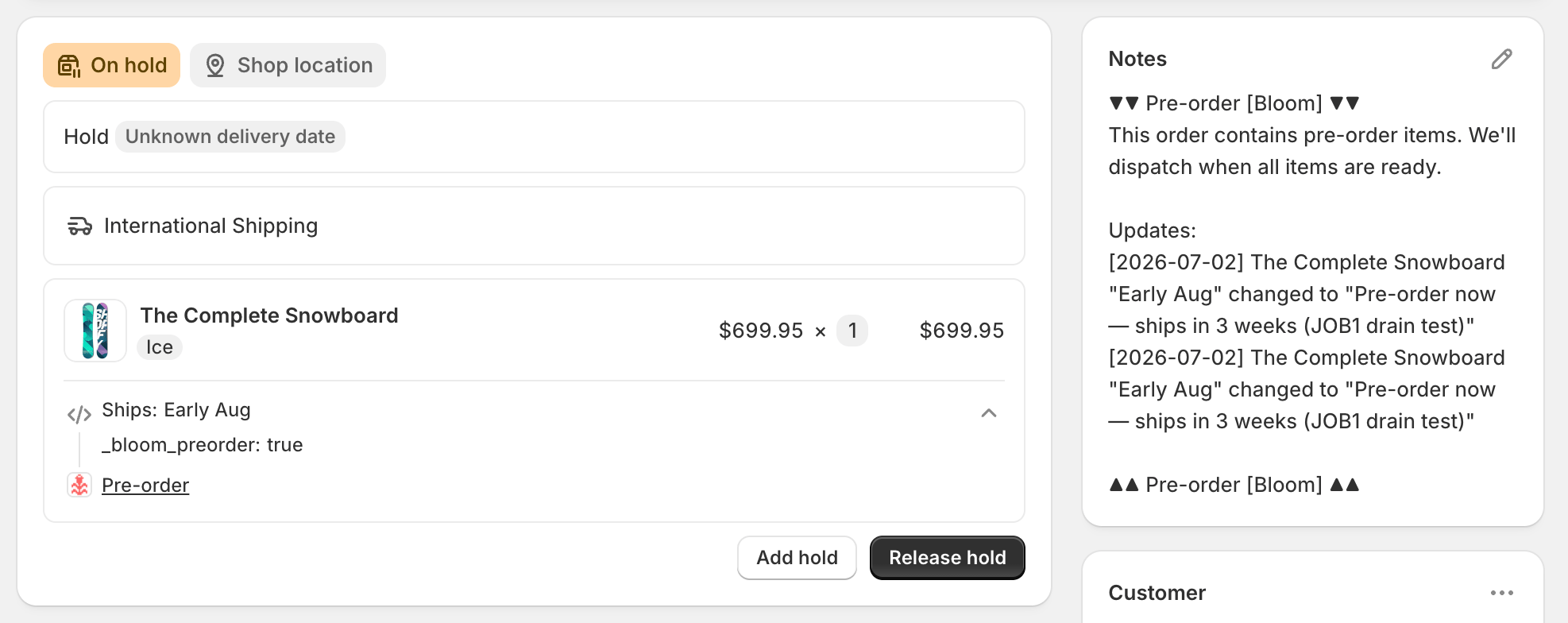
* The `Pre-order` order tag, plus `Pre-order: All items` or `Pre-order: Some items`
* The cart message on each line
* A Bloom block in the **order note** with a pre-order summary and an `Updates:` history of any ship-date changes
**You see:**
* The `Pre-order` order tag, plus `Pre-order: All items` or `Pre-order: Some items`
* The cart message on each line
* A Bloom block in the **order note** with a pre-order summary and an `Updates:` history of any ship-date changes
 If you change a ship date later, the order note and the customer's order-status page update automatically. See [Updating pre-order info on existing orders](/bloom/pre-order/updates).
 ## What you need to do
1. [Enable Bloom in your theme](/bloom/quick-start) (one-time setup)
2. [Configure each pre-order product](/bloom/pre-order/product-config)
## Optional configuration
1. [Schedule date for pre-order to open](/bloom/pre-order/schedule)
2. [Update your order confirmation email](/bloom/pre-order/emails) so customers understand they bought a pre-order
3. [Choose how mixed orders ship](/bloom/pre-order/split-orders) - together, or in-stock first and pre-order later
4. [Check your shipping or fulfilment app](/bloom/pre-order/fulfillment-apps) - most need no setup
5. [Adjust tracking events](/bloom/pre-order/tracking)
## Tracking
Bloom emits events for popular analytics platforms.
* Pre-order viewed
* Pre-order added to cart
* Pre-order checkout started
* Pre-order placed
See [Pre-order tracking](/bloom/pre-order/tracking) for the full event list and how to enable / disable destinations.
## What you need to do
1. [Enable Bloom in your theme](/bloom/quick-start) (one-time setup)
2. [Configure each pre-order product](/bloom/pre-order/product-config)
## Optional configuration
1. [Schedule date for pre-order to open](/bloom/pre-order/schedule)
2. [Update your order confirmation email](/bloom/pre-order/emails) so customers understand they bought a pre-order
3. [Choose how mixed orders ship](/bloom/pre-order/split-orders) - together, or in-stock first and pre-order later
4. [Check your shipping or fulfilment app](/bloom/pre-order/fulfillment-apps) - most need no setup
5. [Adjust tracking events](/bloom/pre-order/tracking)
## Tracking
Bloom emits events for popular analytics platforms.
* Pre-order viewed
* Pre-order added to cart
* Pre-order checkout started
* Pre-order placed
See [Pre-order tracking](/bloom/pre-order/tracking) for the full event list and how to enable / disable destinations.