> ## Documentation Index
> Fetch the complete documentation index at: https://help.goodnative.co/llms.txt
> Use this file to discover all available pages before exploring further.
# Order confirmation emails
> Update Shopify's order confirmation email so customers buying pre-order items get the right expectation about delivery timing, with separate messaging for fully-pre-order and mixed orders.
Shopify's default order confirmation email treats every order the same - *"Thanks for your order, we're getting it ready"* - which is misleading when the customer just bought a pre-order. Update the email so two scenarios are handled clearly:
* **All pre-order** - every item in the order is on pre-order. Set expectations that the whole order ships when stock arrives.
* **Partial pre-order** - some items are in stock and some are on pre-order. Set expectations that you'll ship in one go when the pre-order items arrive, or split into two shipments - whichever your business does.
Bloom stamps every pre-order line with a `_bloom_preorder_message` property containing the cart message (e.g. *"Ships: late July"*). Shopify hides underscore-prefixed properties from the default line-item rendering, so add the [per-line snippet](#per-line-ship-date) as well as the order-level intro.
## Update your email template
1. In Shopify admin, go to **Settings → Notifications → Customer notifications**.
2. Open **Order confirmation**.
3. Click **Edit code**.
4. At the top of the template add the following
```liquid theme={null}
{% for line in subtotal_line_items %}
{% if line.selling_plan_allocation or line.properties['_bloom_preorder_message'] != blank %}
{% assign preorder = true %}
{% else %}
{% assign nonpreorder = true %}
{% endif %}
{% endfor %}
```
5. Find the order's intro line near the top. On current Shopify templates it sits inside `{% capture email_title %}` and reads *"Thank you for your order!"*; older templates use a line like *"Thank you for your purchase. We're getting your order ready to be shipped."*
6. Replace that line with the snippet below.
```liquid theme={null}
{% if preorder and nonpreorder %}
Thanks for your order. Some items are ready to ship and some are on pre-order.
We'll dispatch everything together when all items are ready - see the timing on
each pre-order line below.
{% elsif preorder %}
Thanks for your pre-order! Everything in this order is being made for you and
will ship once stock arrives. See the timing for each item in the order summary below.
{% else %}
Thank you for your purchase. We're getting your order ready to be shipped.
{% endif %}
```
7. Click **Save**.
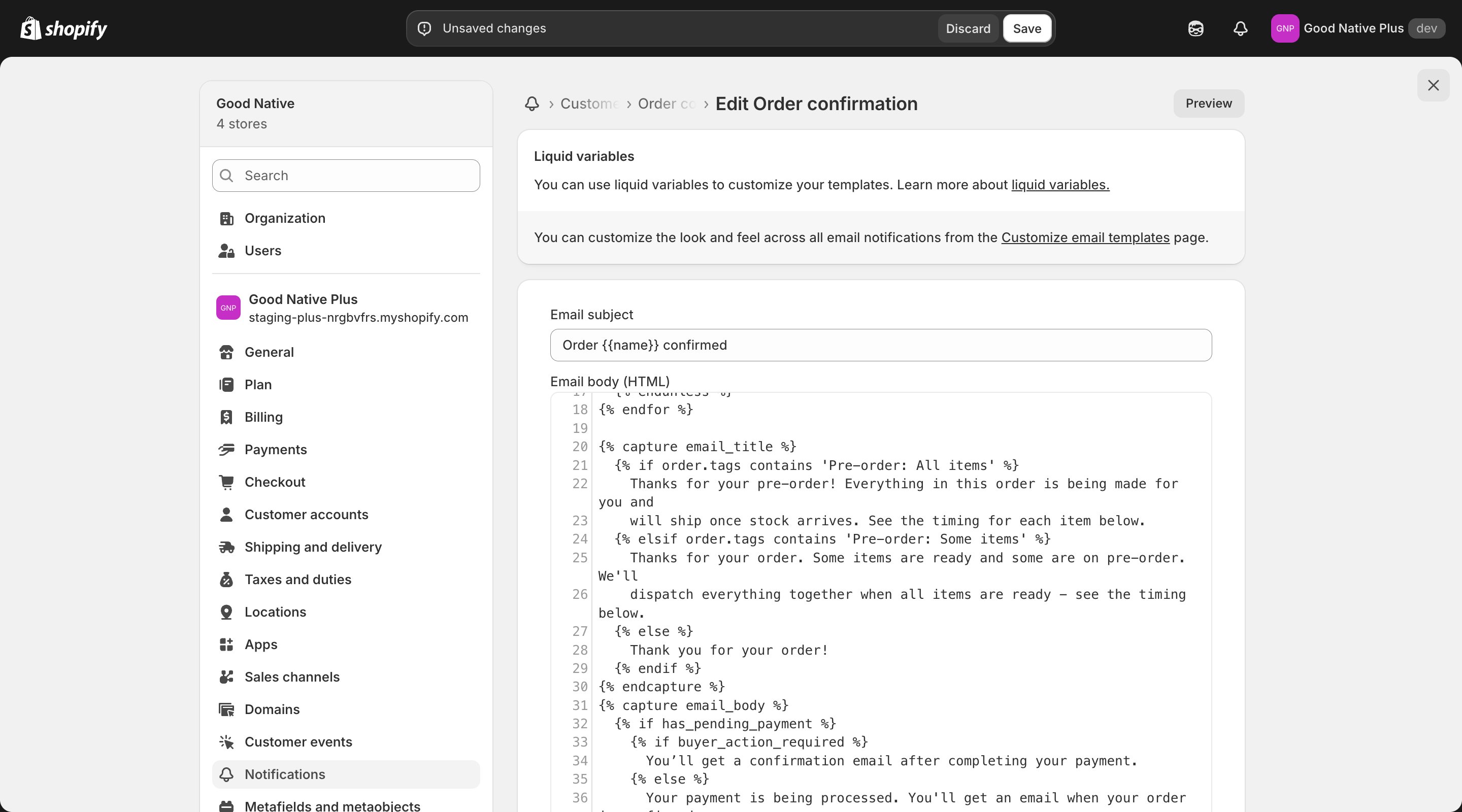 The two pre-order messages above are starting points - adjust the copy to match your brand voice and shipping policy. The most important detail to get right is whether you ship in one go or split into separate shipments.
Need a hand? We can provide code or directly edit your template for you. Email us at [support@goodnative.co](mailto:support@goodnative.co) with your current order confirmation email code.
## Per-line ship date
Bloom stores each line's full cart message - label and ship date, e.g. `Ships: Early July` - in the `_bloom_preorder_message` line property. Shopify's default templates skip underscore-prefixed properties, so render it yourself inside the line item loop:
```liquid theme={null}
{% if line.properties['_bloom_preorder_message'] != blank %}
{{ line.properties['_bloom_preorder_message'] }}
{% endif %}
```
The property already includes your cart line label (**Content → Pre-order → Cart messages → Cart line label**), so there's nothing to translate or prefix.
## Per-line pre-order label
Bloom attaches a selling plan named `Pre-order` to every pre-order line, and Shopify's default template renders the plan name under each line item. Custom templates often drop that block. Restore it in the line-item cell:
```liquid theme={null}
{% if line.selling_plan_allocation %}
{{ line.selling_plan_allocation.selling_plan.name | upcase }}
{% endif %}
```
Renders *PRE-ORDER* on plan-attached lines, straight from the order data - no Bloom property needed.
## Testing
Shopify's standard preview uses an example order that doesn't have pre-order tags, so the new messaging won't show there. Place a real test order to see it come through. Test both scenarios:
* **All pre-order** - one or more pre-order variants, no in-stock items.
* **Partial pre-order** - at least one in-stock item plus a pre-order variant.
## Related
* [Configure a pre-order product](/bloom/pre-order/product-config) - where you set the cart message
* [Updating pre-order info on existing orders](/bloom/pre-order/updates) - what happens when you change a ship date after the order is placed
The two pre-order messages above are starting points - adjust the copy to match your brand voice and shipping policy. The most important detail to get right is whether you ship in one go or split into separate shipments.
Need a hand? We can provide code or directly edit your template for you. Email us at [support@goodnative.co](mailto:support@goodnative.co) with your current order confirmation email code.
## Per-line ship date
Bloom stores each line's full cart message - label and ship date, e.g. `Ships: Early July` - in the `_bloom_preorder_message` line property. Shopify's default templates skip underscore-prefixed properties, so render it yourself inside the line item loop:
```liquid theme={null}
{% if line.properties['_bloom_preorder_message'] != blank %}
{{ line.properties['_bloom_preorder_message'] }}
{% endif %}
```
The property already includes your cart line label (**Content → Pre-order → Cart messages → Cart line label**), so there's nothing to translate or prefix.
## Per-line pre-order label
Bloom attaches a selling plan named `Pre-order` to every pre-order line, and Shopify's default template renders the plan name under each line item. Custom templates often drop that block. Restore it in the line-item cell:
```liquid theme={null}
{% if line.selling_plan_allocation %}
{{ line.selling_plan_allocation.selling_plan.name | upcase }}
{% endif %}
```
Renders *PRE-ORDER* on plan-attached lines, straight from the order data - no Bloom property needed.
## Testing
Shopify's standard preview uses an example order that doesn't have pre-order tags, so the new messaging won't show there. Place a real test order to see it come through. Test both scenarios:
* **All pre-order** - one or more pre-order variants, no in-stock items.
* **Partial pre-order** - at least one in-stock item plus a pre-order variant.
## Related
* [Configure a pre-order product](/bloom/pre-order/product-config) - where you set the cart message
* [Updating pre-order info on existing orders](/bloom/pre-order/updates) - what happens when you change a ship date after the order is placed