> ## Documentation Index
> Fetch the complete documentation index at: https://help.goodnative.co/llms.txt
> Use this file to discover all available pages before exploring further.
# Add the Bloom Product block (optional)
> Add the Bloom Product theme block to your Shopify product template to override pre-order and Notify Me styling or messaging per template, market, or locale.
Bloom auto-injects the pre-order message and Notify Me form next to your **Add to cart** button as soon as the embed is enabled - you don't need to add anything to your product template. Add the **Bloom Product** theme block only if you want **per-template, per-market or per-locale overrides** from the theme customiser.
## When you'd add it
* You want a different button colour or message on one product template (e.g. a launch page).
* You sell in multiple markets and want different cart messages or colours per market.
* You translate copy per locale and want Bloom's button text to follow.
For store-wide styling and messaging, use **Apps → Bloom → Design** and **Content** instead - they apply everywhere with no block needed.
## Steps
1. From Shopify admin, go to **Online Store → Themes**.
2. On your live theme click **Customise**.
3. Switch the template selector to **Product** (or the specific template / market / locale you want to override).
4. Select your product template's main section.
5. Click **Add block** and pick **Bloom Product** under *Apps*.
6. Place it directly **below** your **Add to cart** button.
7. Edit the override fields in the block sidebar.
8. Click **Save**.
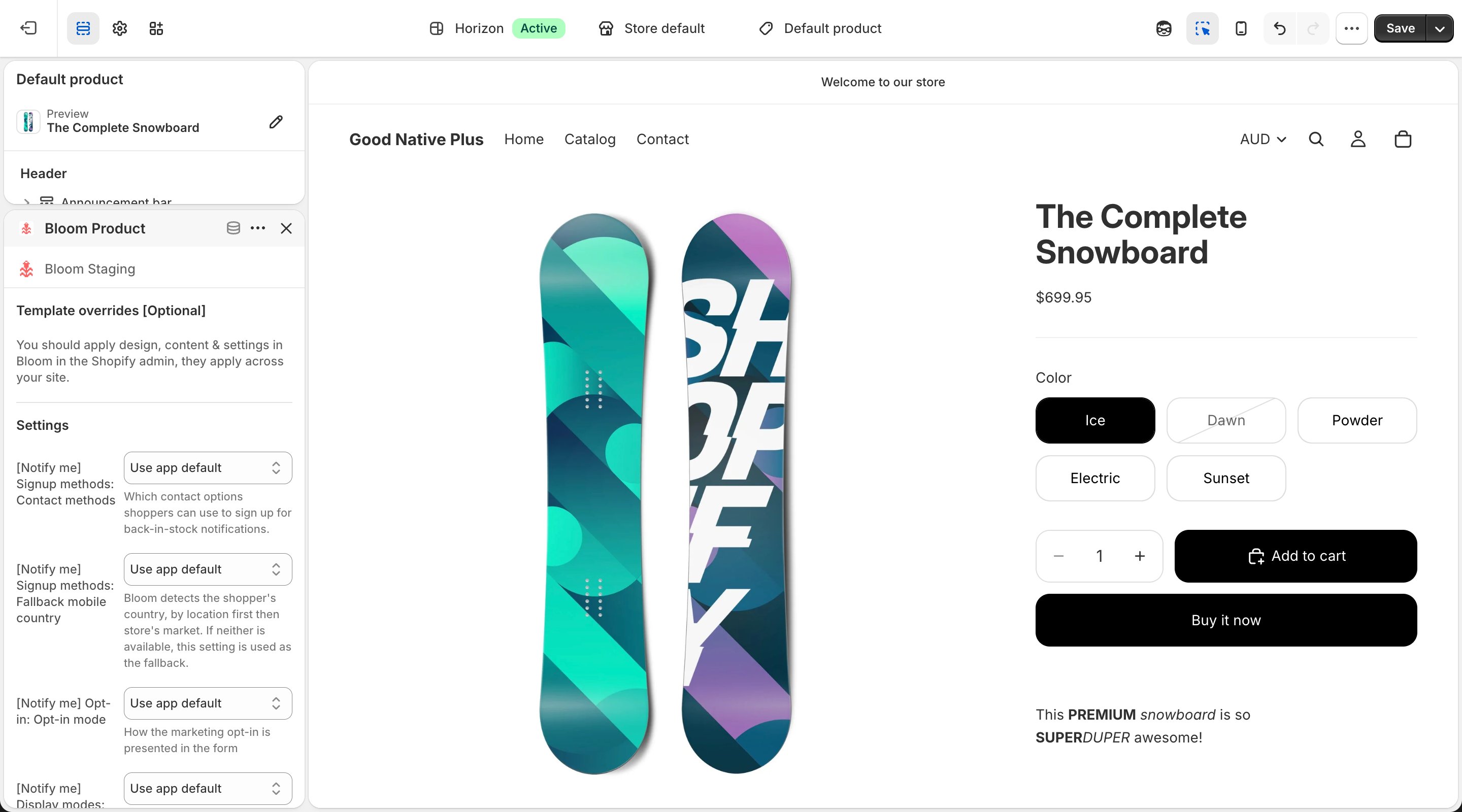 Some themes like Turbo don't allow app blocks inside the product section. Add the Bloom Product block as a section under the product information section instead.
## What you can override
* Colours - button, text, sold-out, hover and focus states.
* Messages - pre-order button label, cart messages, Notify Me button label and form heading.
* A subset of layout settings.
Sizes, fonts, spacing, borders, and behaviour stay global - set them from the Bloom admin.
Anything you don't override falls back to your global Bloom settings.
## Related
* [Tailor template, market or locale](/bloom/theme-template-and-locale-overrides)
* [Quick start guide](/bloom/quick-start)
Some themes like Turbo don't allow app blocks inside the product section. Add the Bloom Product block as a section under the product information section instead.
## What you can override
* Colours - button, text, sold-out, hover and focus states.
* Messages - pre-order button label, cart messages, Notify Me button label and form heading.
* A subset of layout settings.
Sizes, fonts, spacing, borders, and behaviour stay global - set them from the Bloom admin.
Anything you don't override falls back to your global Bloom settings.
## Related
* [Tailor template, market or locale](/bloom/theme-template-and-locale-overrides)
* [Quick start guide](/bloom/quick-start)