> ## Documentation Index
> Fetch the complete documentation index at: https://help.goodnative.co/llms.txt
> Use this file to discover all available pages before exploring further.
# Notify Me quick start
> Enable Bloom in your Shopify theme, style the Notify Me form, connect Klaviyo, and build the back-in-stock flow so out-of-stock shoppers get notified - live in under 10 minutes.
Get Notify Me live on your store. New here? Start with the [Notify Me overview](/bloom/notify-me/overview).
By the end, out-of-stock variants will show a **Notify me when back in stock** form, and sign-ups will flow into Klaviyo ready for your back-in-stock flow.
## In a nutshell
1. Enable Bloom in your theme
2. Style the Notify Me form and messaging
3. Connect Klaviyo
4. Set up the back-in-stock flow in Klaviyo
**Before you begin**
* Shopify 2.0 Theme (some 1.0 themes are also compatible)
* Admin access to edit your theme
* A Klaviyo account
## Follow the in-app setup guide
The Bloom home page (**Apps → Bloom**) has a **Notify Me** tab with a badge that flips to **Active** once Notify Me is live. The **Get started** card on the **Welcome** tab lists the three setup steps with a **Set up** button that deep-links to the right screen.
 ## 1. Enable Bloom in your theme
Enabling the Bloom app embed is the only theme change required. The Notify Me form auto-injects next to your **Add to cart** button on every product page.
1. From Shopify admin, go to **Online Store → Themes**.
2. On your live theme click **Customise**.
3. Open the **App embeds** panel (the puzzle-piece icon in the left sidebar).
4. Toggle **Bloom** on.
5. Click **Save**.
## 1. Enable Bloom in your theme
Enabling the Bloom app embed is the only theme change required. The Notify Me form auto-injects next to your **Add to cart** button on every product page.
1. From Shopify admin, go to **Online Store → Themes**.
2. On your live theme click **Customise**.
3. Open the **App embeds** panel (the puzzle-piece icon in the left sidebar).
4. Toggle **Bloom** on.
5. Click **Save**.
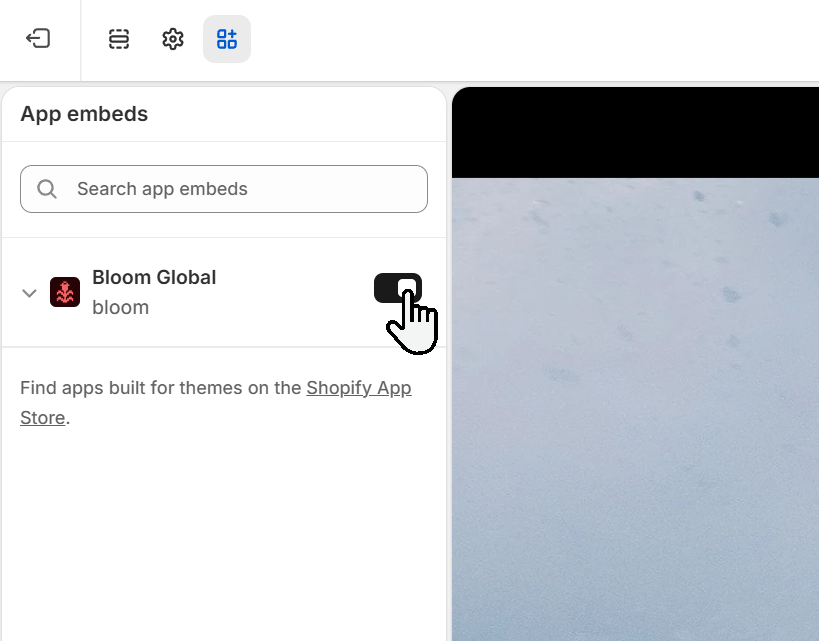 From inside Bloom, the **Theme editor** button on the setup guide opens this screen with the Bloom embed pre-activated - just save.
### Product page block
Most themes need nothing more than the app embed. Add the **Bloom Product** block to your product template only if:
* The Notify Me form flickers or doesn't appear on your theme.
* You want per-template, market or locale overrides.
See [Add the Bloom Product block](/bloom/pdp-block).
## 2. Design & messaging
1. In Shopify admin, open **Apps → Bloom**.
2. Go to **Design**, then the **Notify Me** tab.
3. Work through the sections in the left column - **Add to cart** and **Product page** - adjusting text, buttons, colours, borders and spacing.
4. Check your work in the **Preview** panel.
5. Click **Save**.
From inside Bloom, the **Theme editor** button on the setup guide opens this screen with the Bloom embed pre-activated - just save.
### Product page block
Most themes need nothing more than the app embed. Add the **Bloom Product** block to your product template only if:
* The Notify Me form flickers or doesn't appear on your theme.
* You want per-template, market or locale overrides.
See [Add the Bloom Product block](/bloom/pdp-block).
## 2. Design & messaging
1. In Shopify admin, open **Apps → Bloom**.
2. Go to **Design**, then the **Notify Me** tab.
3. Work through the sections in the left column - **Add to cart** and **Product page** - adjusting text, buttons, colours, borders and spacing.
4. Check your work in the **Preview** panel.
5. Click **Save**.
 The form is open by default with no button. Change the layout, message position and contact methods in [Notify Me settings](/bloom/notify-me/settings#display-modes).
Set your default button label, form heading and success message under **Apps → Bloom → Content → Notify me**, then click **Save**. These accept `{product-name}` and `{variant-name}` tokens.
Tailor messaging on specific templates, locales or markets with the Bloom blocks in your theme customiser. See [Tailor template, market or locale](/bloom/theme-template-and-locale-overrides).
## 3. Connect Klaviyo
All email and SMS communications come from Klaviyo using their back-in-stock flows.
1. In Shopify admin, open **Apps → Bloom**.
2. Go to **Settings → Notify Me**, then **Integrations → Klaviyo integration**.
3. Click **Connect Klaviyo** and authorise Bloom. The panel shows **Connected** with the granted scopes.
4. Pick your **Back-in-stock list**, or use **Create a list** to make one. Leave it on the account default to subscribe shoppers without adding them to a list.
5. Click **Save**.
The form is open by default with no button. Change the layout, message position and contact methods in [Notify Me settings](/bloom/notify-me/settings#display-modes).
Set your default button label, form heading and success message under **Apps → Bloom → Content → Notify me**, then click **Save**. These accept `{product-name}` and `{variant-name}` tokens.
Tailor messaging on specific templates, locales or markets with the Bloom blocks in your theme customiser. See [Tailor template, market or locale](/bloom/theme-template-and-locale-overrides).
## 3. Connect Klaviyo
All email and SMS communications come from Klaviyo using their back-in-stock flows.
1. In Shopify admin, open **Apps → Bloom**.
2. Go to **Settings → Notify Me**, then **Integrations → Klaviyo integration**.
3. Click **Connect Klaviyo** and authorise Bloom. The panel shows **Connected** with the granted scopes.
4. Pick your **Back-in-stock list**, or use **Create a list** to make one. Leave it on the account default to subscribe shoppers without adding them to a list.
5. Click **Save**.
 See [Connect Klaviyo](/bloom/notify-me/connect-klaviyo) for the full walk-through, including the legacy Company ID and List ID fields further down the same panel.
You will start receiving Notify Me sign-ups at this point.
## 4. Set up the back-in-stock flow in Klaviyo
Sign-ups are captured immediately, but no email or SMS goes out until this flow is live in Klaviyo.
Full walk-through: [Set up the back-in-stock flow](/bloom/notify-me/flow).
See [Connect Klaviyo](/bloom/notify-me/connect-klaviyo) for the full walk-through, including the legacy Company ID and List ID fields further down the same panel.
You will start receiving Notify Me sign-ups at this point.
## 4. Set up the back-in-stock flow in Klaviyo
Sign-ups are captured immediately, but no email or SMS goes out until this flow is live in Klaviyo.
Full walk-through: [Set up the back-in-stock flow](/bloom/notify-me/flow).
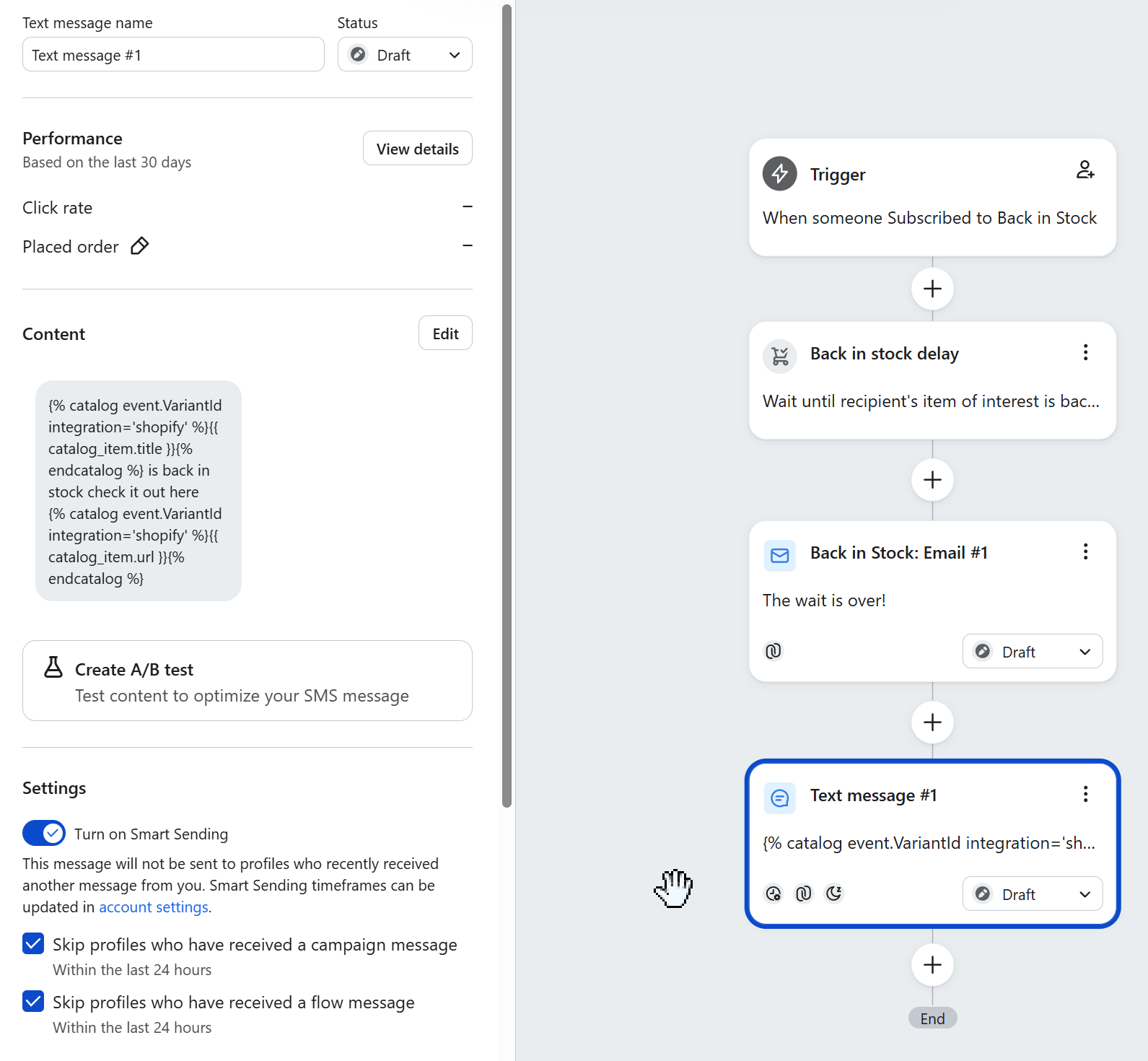 Notify Me will not send any notifications until this flow is live in Klaviyo.
## Optional
* [Customise each product](/bloom/notify-me/product-config) - button label, form heading
* [Disable Notify Me on products](/bloom/notify-me/disable) you don't want offering sign-ups
* [Adjust tracking events](/bloom/notify-me/tracking)
Bloom does not display on gift card products.
## Related
* [Notify Me overview](/bloom/notify-me/overview)
* [Connect Klaviyo](/bloom/notify-me/connect-klaviyo)
* [Set up the back-in-stock flow](/bloom/notify-me/flow)
* [Notify Me settings](/bloom/notify-me/settings)
Notify Me will not send any notifications until this flow is live in Klaviyo.
## Optional
* [Customise each product](/bloom/notify-me/product-config) - button label, form heading
* [Disable Notify Me on products](/bloom/notify-me/disable) you don't want offering sign-ups
* [Adjust tracking events](/bloom/notify-me/tracking)
Bloom does not display on gift card products.
## Related
* [Notify Me overview](/bloom/notify-me/overview)
* [Connect Klaviyo](/bloom/notify-me/connect-klaviyo)
* [Set up the back-in-stock flow](/bloom/notify-me/flow)
* [Notify Me settings](/bloom/notify-me/settings)