> ## Documentation Index
> Fetch the complete documentation index at: https://help.goodnative.co/llms.txt
> Use this file to discover all available pages before exploring further.
# Set up the back-in-stock flow
> Enable Klaviyo Back in Stock, build the email and SMS flow, and send a test so subscribers are notified automatically when inventory returns.
Bloom captures Notify Me sign-ups and pushes them into Klaviyo. **Klaviyo sends the notifications** - Bloom doesn't. Until you set up a back-in-stock flow in Klaviyo, sign-ups will sit in your list and no one will be notified when stock comes back.
Klaviyo's back-in-stock functionality is native to every paid Klaviyo plan. You don't need any add-on - just the flow.
## Before you start
Make sure you've already [connected Klaviyo to Bloom](/bloom/notify-me/connect-klaviyo) and pushed at least one test sign-up. You'll need a subscriber on file for the flow to fire against during testing.
## Steps
### 1. Enable back-in-stock in Klaviyo
1. In Klaviyo, go to **Settings → Other → Back in Stock**.
2. Click **Enable Back in Stock**.
3. Configure the **send frequency** - how often Klaviyo can send back-in-stock emails to the same person (default: once per 24 hours).
4. Click **Save**.
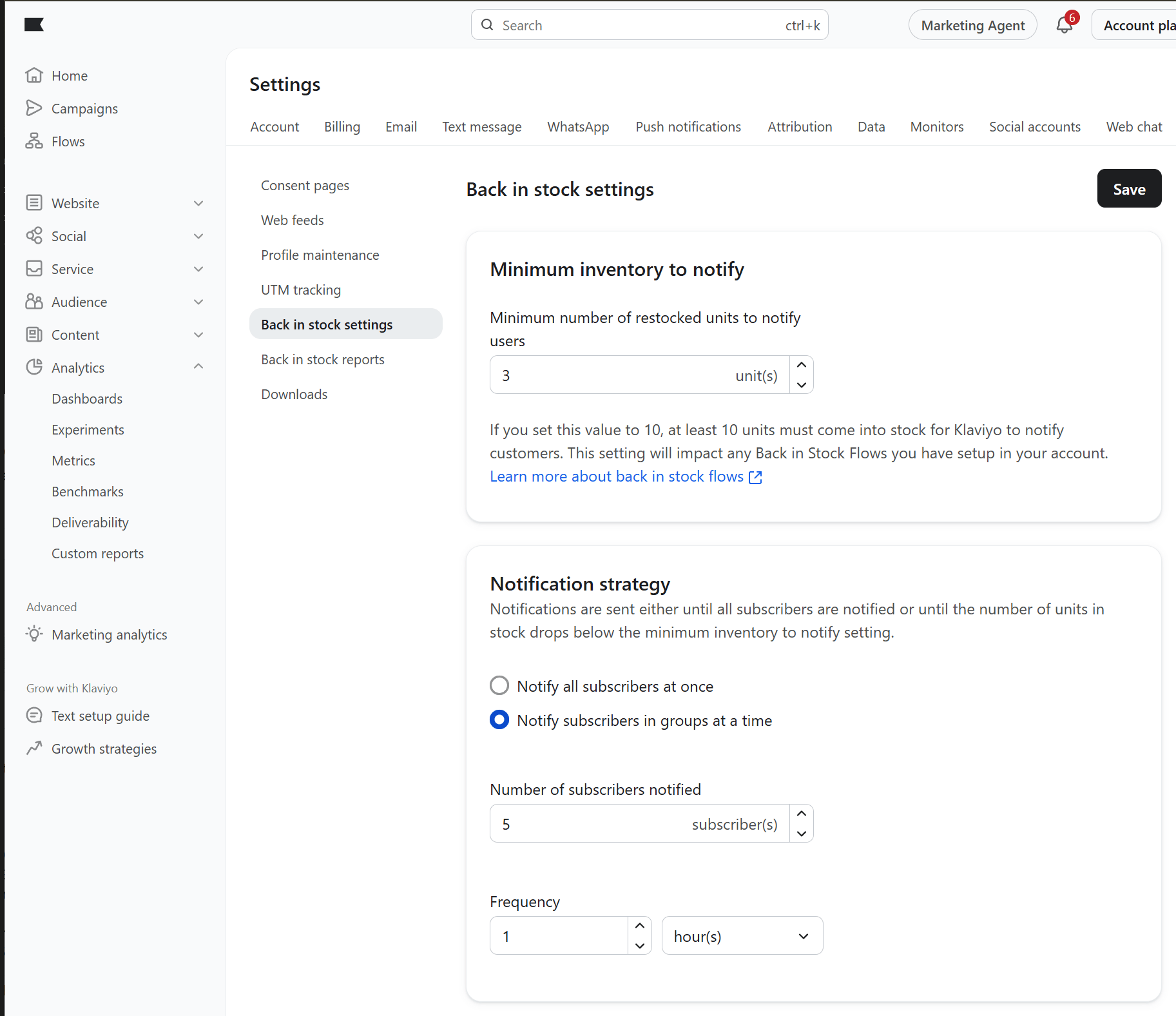 We recommend setting **number of subscribers notified** to 5 - 10. Klaviyo sends 5-10 emails each time a variant comes back in stock, and then resends to more subscribers every hour. This creates a steady flow of purchases and avoids a huge wall of 'out of stock'.
We highly recommend setting **Minimum number of restocked units to notify** to 3 - 5 units (or more). This avoids emails being sent when stock is returned or administrative changes which can bump stock just over 0.
### 2. Build the flow
1. In Klaviyo, go to [**Flows → Create Flow → Back in Stock template**](https://www.klaviyo.com/flows/create?search=back).
2. Search for the **Back in Stock** and [select the template](https://www.klaviyo.com/flows/create?object_id=NQY2Np\&search=back).
We recommend setting **number of subscribers notified** to 5 - 10. Klaviyo sends 5-10 emails each time a variant comes back in stock, and then resends to more subscribers every hour. This creates a steady flow of purchases and avoids a huge wall of 'out of stock'.
We highly recommend setting **Minimum number of restocked units to notify** to 3 - 5 units (or more). This avoids emails being sent when stock is returned or administrative changes which can bump stock just over 0.
### 2. Build the flow
1. In Klaviyo, go to [**Flows → Create Flow → Back in Stock template**](https://www.klaviyo.com/flows/create?search=back).
2. Search for the **Back in Stock** and [select the template](https://www.klaviyo.com/flows/create?object_id=NQY2Np\&search=back).
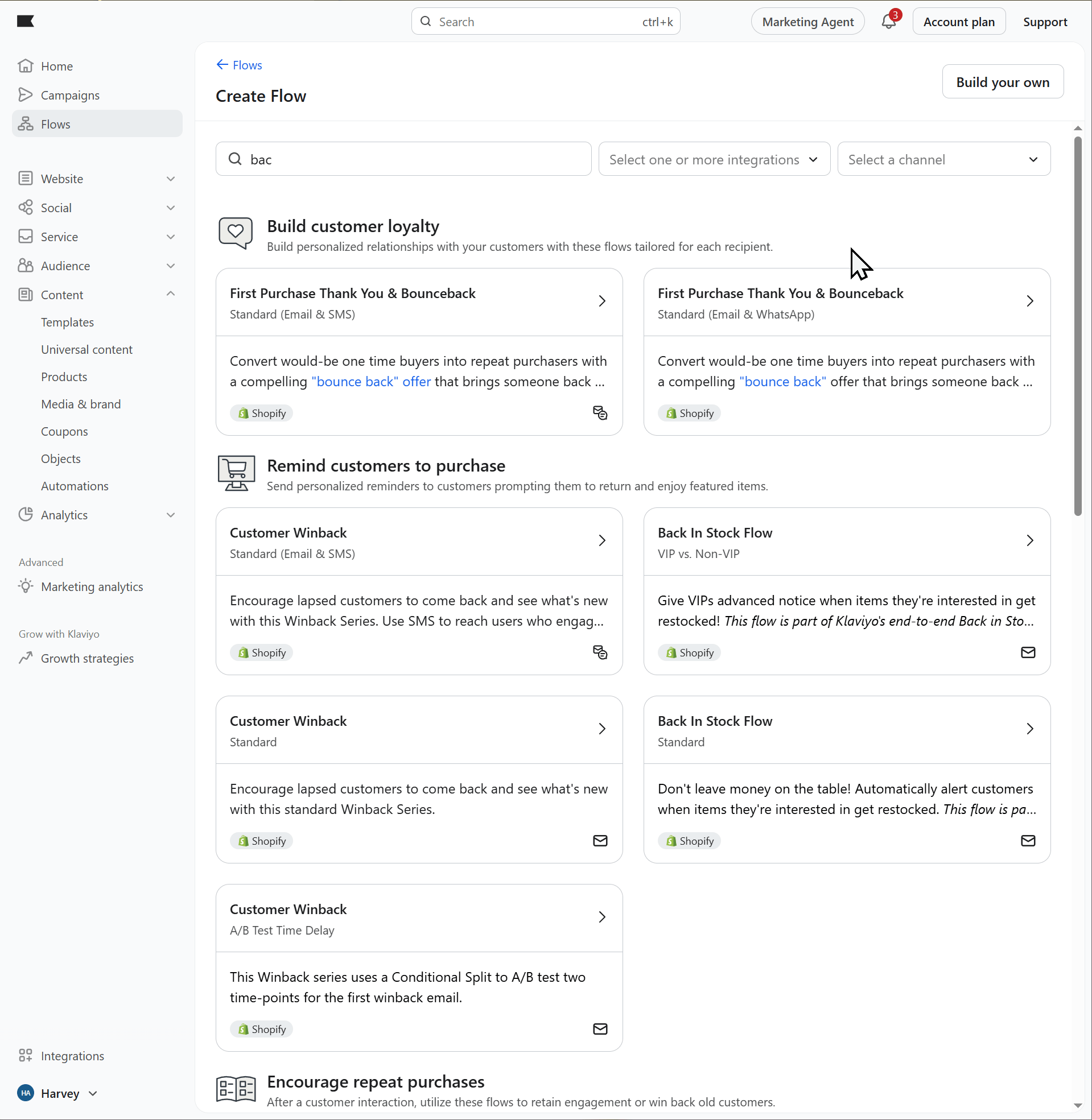 3. Confirm the **trigger** is set to the *Back in Stock* event.
4. Keep **Back in Stock** in the flow's name.
5. Customise the email - branding, copy, product block.
6. (Optional) Add an SMS step in parallel for subscribers with phone numbers.
7. Set the flow to **Live**.
Bloom measures the visits, add-to-carts, and orders your flow drives using the email's UTM parameters. Klaviyo's default UTM tracking settings are normally right - just leave UTM tracking on and keep *Back in Stock* in the flow name. See [Measure back-in-stock results](/bloom/notify-me/measure-results).
3. Confirm the **trigger** is set to the *Back in Stock* event.
4. Keep **Back in Stock** in the flow's name.
5. Customise the email - branding, copy, product block.
6. (Optional) Add an SMS step in parallel for subscribers with phone numbers.
7. Set the flow to **Live**.
Bloom measures the visits, add-to-carts, and orders your flow drives using the email's UTM parameters. Klaviyo's default UTM tracking settings are normally right - just leave UTM tracking on and keep *Back in Stock* in the flow name. See [Measure back-in-stock results](/bloom/notify-me/measure-results).
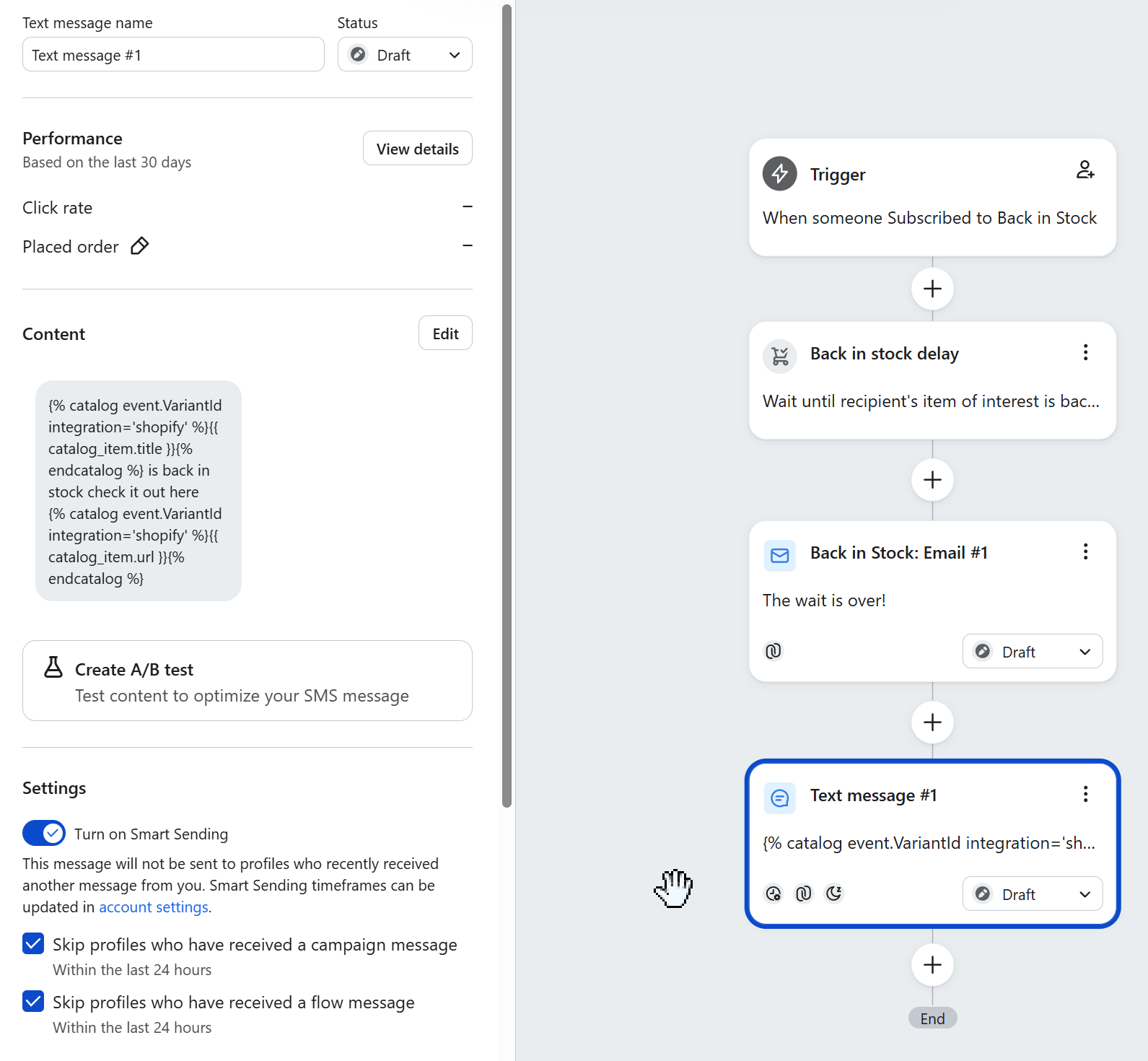 ### SMS snippet for product name and link
```text theme={null}
{% catalog event.VariantId integration='shopify' %}{{ catalog_item.title }}{% endcatalog %} is back in stock check it out here
{% catalog event.VariantId integration='shopify' %}{{ catalog_item.url }}{% endcatalog %}
```
To add an image attachment to your SMS add this into the media field
```text theme={null}
{% catalog event.VariantId integration='shopify' %}{{ catalog_item.variant.featured_image.full.src|default:catalog_item.featured_image.full.src }}{% endcatalog %}
```
To configure an SMS you need to have [set up SMS in Klaviyo](https://help.klaviyo.com/hc/en-us/articles/360023213971), including getting a sending number approved.
### 3. Send yourself a test
1. Set a variant's inventory to 0 in Shopify.
2. On the storefront, sign yourself up via the Notify Me form.
3. Set inventory back above 0.
4. You should receive the back-in-stock email (and SMS, if you configured one) within a few minutes - subject to the send-frequency cap you set in step 1.
## Tips
* **Send frequency matters.** If you bulk-restock a product, every subscriber gets notified at once. A 24-hour cap prevents people getting hammered if you restock and sell out repeatedly.
* **Use SMS sparingly.** SMS conversion on back-in-stock is high but customers can find it intrusive. Many stores send email-first, SMS only for high-intent subscribers.
* **Keep the email short.** A photo, the product name, and a CTA button is enough. The customer already wants the product - don't get in their way.
## Related
* [Connect Klaviyo](/bloom/notify-me/connect-klaviyo)
* [Notify Me overview](/bloom/notify-me/overview)
* [Measure back-in-stock results](/bloom/notify-me/measure-results)
* Klaviyo's docs: [Back in Stock guide](https://help.klaviyo.com/hc/en-us/articles/16025437388699)
### SMS snippet for product name and link
```text theme={null}
{% catalog event.VariantId integration='shopify' %}{{ catalog_item.title }}{% endcatalog %} is back in stock check it out here
{% catalog event.VariantId integration='shopify' %}{{ catalog_item.url }}{% endcatalog %}
```
To add an image attachment to your SMS add this into the media field
```text theme={null}
{% catalog event.VariantId integration='shopify' %}{{ catalog_item.variant.featured_image.full.src|default:catalog_item.featured_image.full.src }}{% endcatalog %}
```
To configure an SMS you need to have [set up SMS in Klaviyo](https://help.klaviyo.com/hc/en-us/articles/360023213971), including getting a sending number approved.
### 3. Send yourself a test
1. Set a variant's inventory to 0 in Shopify.
2. On the storefront, sign yourself up via the Notify Me form.
3. Set inventory back above 0.
4. You should receive the back-in-stock email (and SMS, if you configured one) within a few minutes - subject to the send-frequency cap you set in step 1.
## Tips
* **Send frequency matters.** If you bulk-restock a product, every subscriber gets notified at once. A 24-hour cap prevents people getting hammered if you restock and sell out repeatedly.
* **Use SMS sparingly.** SMS conversion on back-in-stock is high but customers can find it intrusive. Many stores send email-first, SMS only for high-intent subscribers.
* **Keep the email short.** A photo, the product name, and a CTA button is enough. The customer already wants the product - don't get in their way.
## Related
* [Connect Klaviyo](/bloom/notify-me/connect-klaviyo)
* [Notify Me overview](/bloom/notify-me/overview)
* [Measure back-in-stock results](/bloom/notify-me/measure-results)
* Klaviyo's docs: [Back in Stock guide](https://help.klaviyo.com/hc/en-us/articles/16025437388699)