> ## Documentation Index
> Fetch the complete documentation index at: https://help.goodnative.co/llms.txt
> Use this file to discover all available pages before exploring further.
# Connect Klaviyo
> Find your Klaviyo Company ID and List ID, then paste both into Bloom so Notify Me sign-ups sync to your Klaviyo back-in-stock list.
Notify Me sign-ups are stored in Klaviyo, not in Bloom. To make that work you need two values from Klaviyo:
* **Company ID** - your Klaviyo site's Public API Key (a short identifier, e.g. `AbCd12`). Bloom uses it from the storefront to submit sign-ups to Klaviyo's. No private API key is required.
* **List ID** - the Klaviyo list new sign-ups are added to.
## Steps
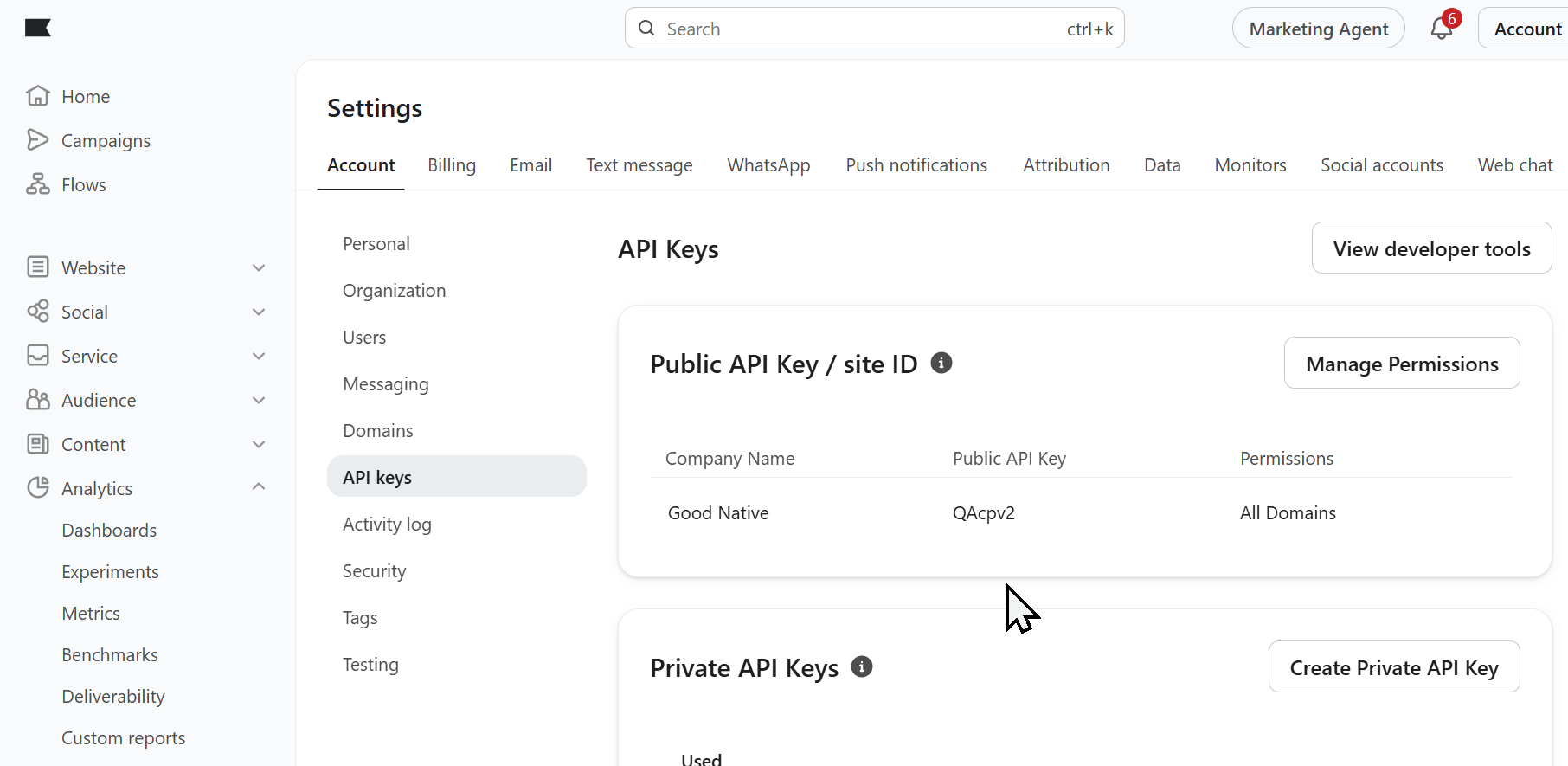
### 1. Find your Company ID in Klaviyo
1. Open your [Klaviyo account](https://www.klaviyo.com/).
2. Go to [**Settings → Account → API Keys**](https://www.klaviyo.com/settings/account/api-keys).
3. Copy the **Public API Key** (this is your Company ID - typically 6 characters). `QAcpv2` in the example below.
4. Paste this into Bloom → Settings → Notify me → Klaviyo Integration
 ### 2. Find your List ID
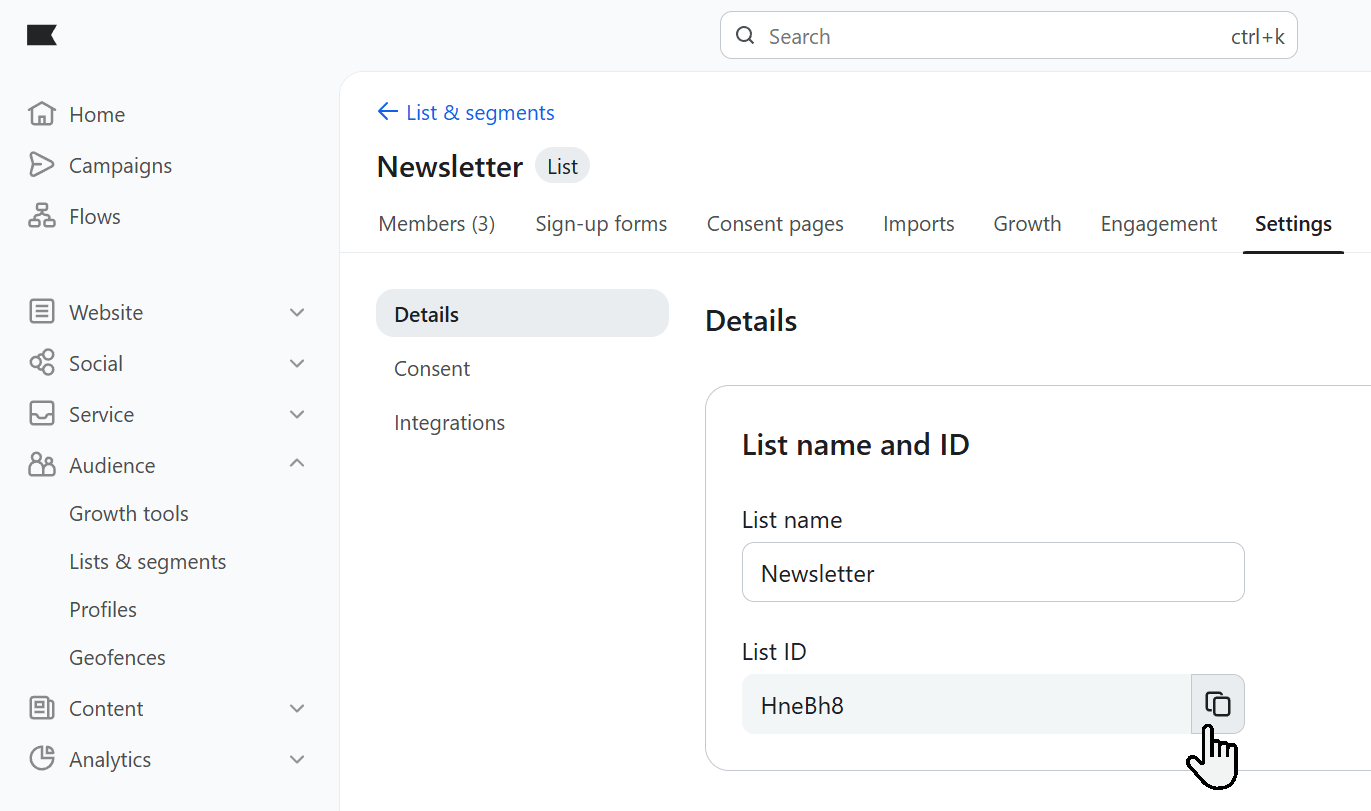
1. In Klaviyo, go to **Audience → Lists & Segments**.
2. Open (or create) the list you want Notify Me sign-ups added to. Most stores create a dedicated list like *Back in stock sign-ups*.
3. Click **Settings** on the list - the **List ID** is shown there (a 6-character code).
### 2. Find your List ID
1. In Klaviyo, go to **Audience → Lists & Segments**.
2. Open (or create) the list you want Notify Me sign-ups added to. Most stores create a dedicated list like *Back in stock sign-ups*.
3. Click **Settings** on the list - the **List ID** is shown there (a 6-character code).
 ### 3. Paste both into Bloom
1. In Shopify admin, open **Apps → Bloom**.
2. Go to **Settings → Notify me → Klaviyo integration**.
3. Paste your key into **Company ID (Public API Key)**.
4. Paste your list ID into **List ID**.
5. Click **Save**.
## Next: set up the flow
Connecting Klaviyo means sign-ups will land in your list - but Klaviyo won't send anything until you configure the back-in-stock flow. See [Set up the back-in-stock flow](/bloom/notify-me/flow).
### 3. Paste both into Bloom
1. In Shopify admin, open **Apps → Bloom**.
2. Go to **Settings → Notify me → Klaviyo integration**.
3. Paste your key into **Company ID (Public API Key)**.
4. Paste your list ID into **List ID**.
5. Click **Save**.
## Next: set up the flow
Connecting Klaviyo means sign-ups will land in your list - but Klaviyo won't send anything until you configure the back-in-stock flow. See [Set up the back-in-stock flow](/bloom/notify-me/flow).