> ## Documentation Index
> Fetch the complete documentation index at: https://help.goodnative.co/llms.txt
> Use this file to discover all available pages before exploring further.
# Add to cart identification
> Advanced overrides for non-standard Shopify themes - currently a custom CSS selector for the Add to Cart button when Bloom's auto-detection misses it.
Bloom auto-detects your theme's **Add to cart** button and slots its widget directly below it on the product page. If your theme uses an unusual button structure and the widget appears in the wrong place - or doesn't appear at all - use Developer settings to override the selector.
The functionality has been heavily tested with top 20 theme developers and most used themes. If you need support contact us and we can optimise the app to work on your theme.
Most themes work without any developer configuration. Try a normal install first; only come here if the widget isn't anchoring correctly.
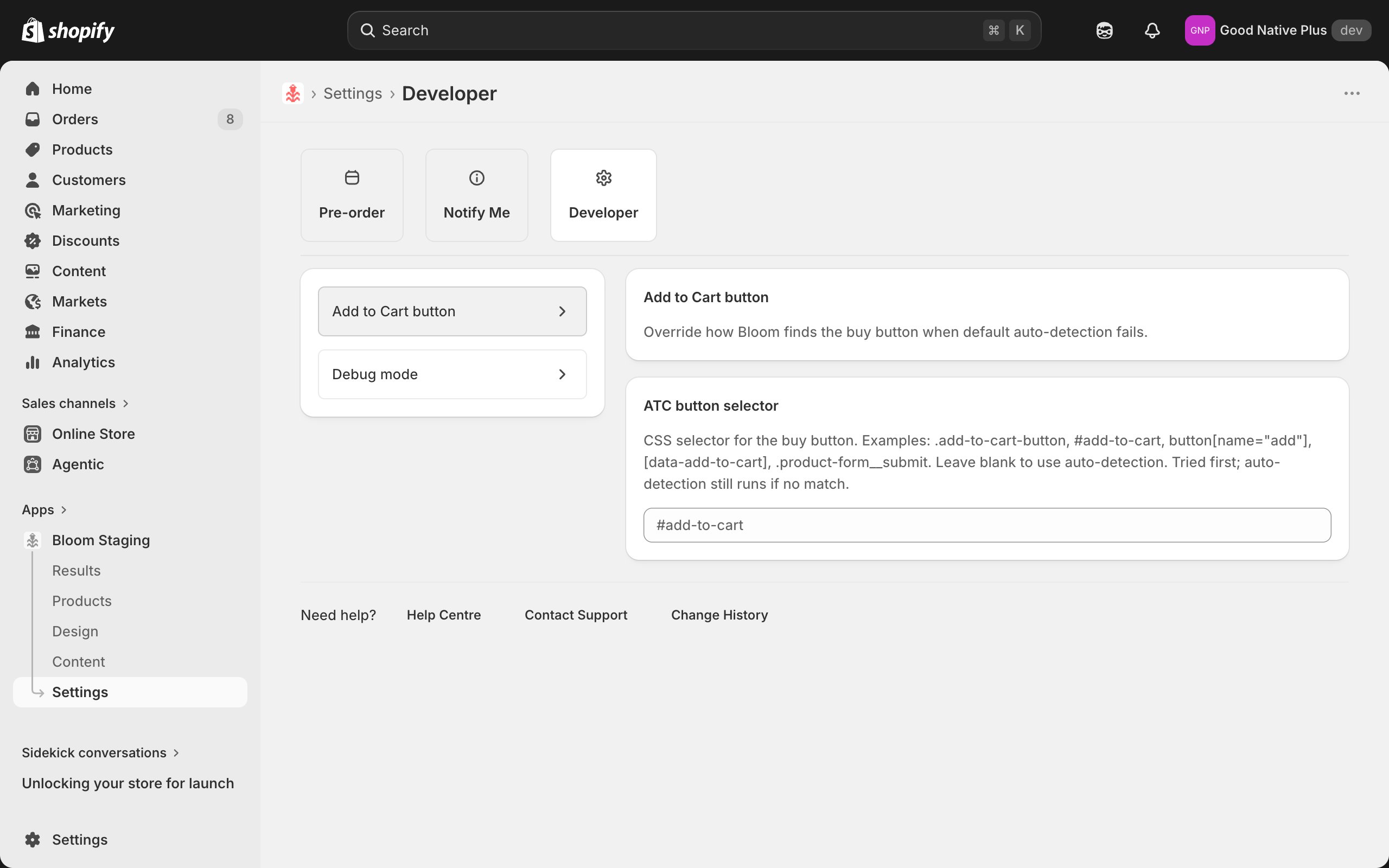
## ATC button selector
Find it at **Apps → Bloom → Settings → Developer → Add to Cart button**.
Paste a CSS selector that uniquely identifies your theme's buy button. Bloom tries this first; if it doesn't match, auto-detection still runs as a fallback.
 ### Examples
```html theme={null}
.add-to-cart-button
#add-to-cart
button[name="add"]
[data-add-to-cart]
.product-form__submit
```
### How to find your theme's selector
1. On your storefront product page, right-click the **Add to cart** button → **Inspect**.
2. In the highlighted DOM node, look for an `id`, `name`, `data-*` attribute, or a stable class.
3. Use the most specific stable identifier:
* `id` is best: `#add-to-cart`
* Next: `name`/`data-*` attribute: `button[name="add"]`, `[data-add-to-cart]`
* Last resort: class names - themes change these between updates.
4. Paste into the **ATC button selector** field. Click **Save**.
5. Reload the product page on the storefront and confirm the widget appears below the button.
Leave the field blank to use auto-detection only. If the theme is one Bloom already supports out-of-the-box, no override is needed.
### Examples
```html theme={null}
.add-to-cart-button
#add-to-cart
button[name="add"]
[data-add-to-cart]
.product-form__submit
```
### How to find your theme's selector
1. On your storefront product page, right-click the **Add to cart** button → **Inspect**.
2. In the highlighted DOM node, look for an `id`, `name`, `data-*` attribute, or a stable class.
3. Use the most specific stable identifier:
* `id` is best: `#add-to-cart`
* Next: `name`/`data-*` attribute: `button[name="add"]`, `[data-add-to-cart]`
* Last resort: class names - themes change these between updates.
4. Paste into the **ATC button selector** field. Click **Save**.
5. Reload the product page on the storefront and confirm the widget appears below the button.
Leave the field blank to use auto-detection only. If the theme is one Bloom already supports out-of-the-box, no override is needed.